
Setting Up AI API Keys
Configure API keys for AI-powered features like the Changelog, Multi-AI Assistants, and SpecWriter.
Why API Keys?
Claude Code itself does not need an API key — it uses your Claude Pro or Max subscription directly. But three optional features in CodeMantis require separate API keys from AI providers:
| Feature | What It Does | Why It Needs a Key |
|---|---|---|
| AI-Powered Changelog | Auto-generates session summaries | Calls an LLM to analyze your session and produce structured entries |
| Multi-AI Assistants | Run the latest models from OpenAI, Google, and Anthropic alongside Claude Code | Sends messages to third-party AI providers |
| SpecWriter | Interactive spec writing | Uses an LLM to guide the conversation and generate specifications |
These keys are optional. CodeMantis works perfectly without them — you just won't have changelog generation, assistant tabs, or SpecWriter AI. You can add keys at any time.
Supported Providers
| Provider | Where to Get a Key | Models Available |
|---|---|---|
| OpenAI | platform.openai.com | The latest GPT models available on your plan |
| Google Gemini | aistudio.google.com | The latest Gemini models available on your plan |
| Anthropic | console.anthropic.com | The latest Claude models via the API |
You only need a key for the providers you want to use. One key is enough to unlock all three features for that provider.
An Anthropic API key is separate from your Claude Pro/Max subscription. The API has its own billing. If you only want changelog generation, Gemini Flash Lite is the most cost-effective choice.
Adding Your Keys
Open Settings
Press Cmd + , or click the gear icon in the sidebar.
Navigate to AI Providers
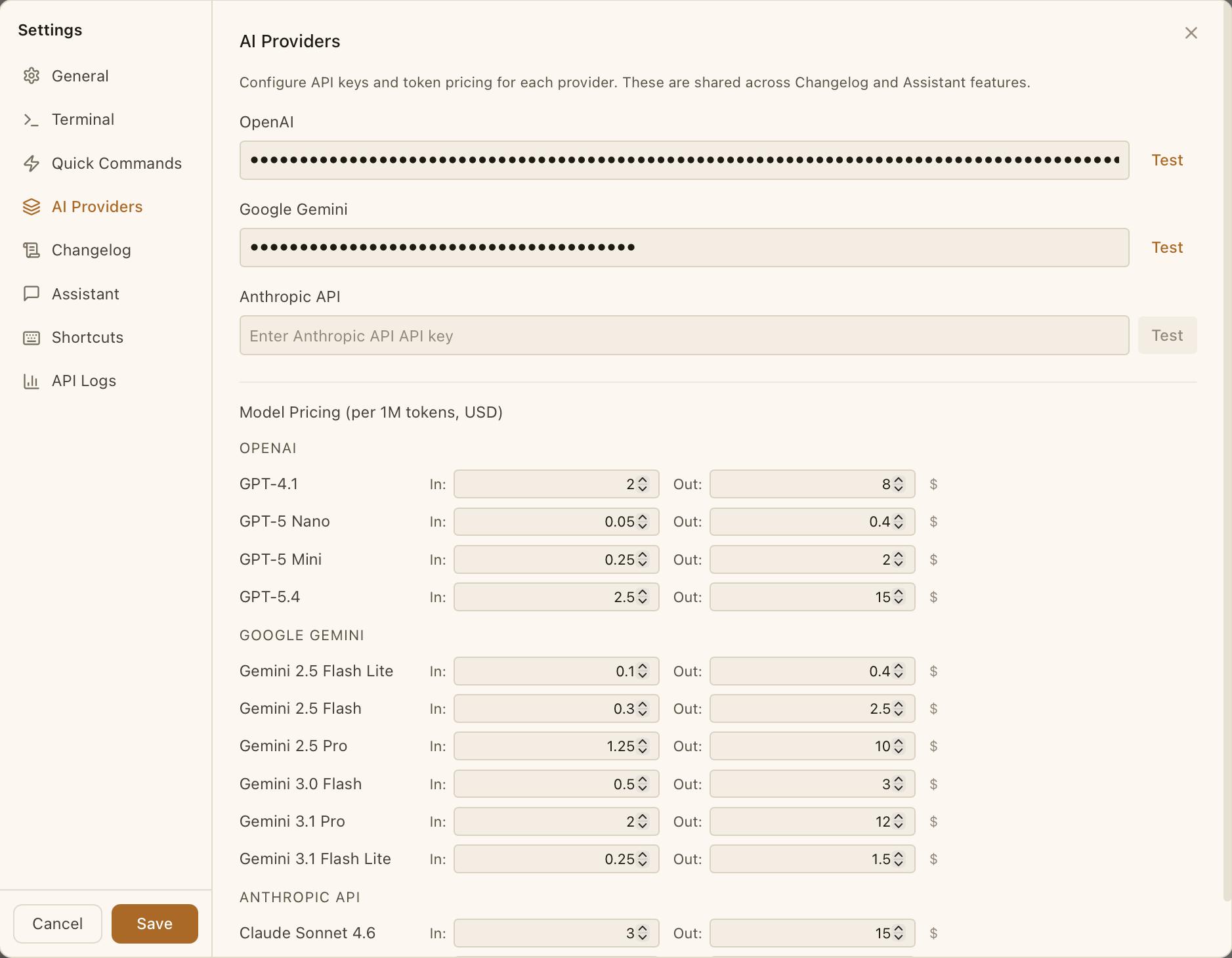
Click the AI Providers tab. You'll see one input field per provider.
Enter your API key
Paste your key into the relevant field. Keys are masked as dots for security.
Test the key
Click the Test button next to the input field. CodeMantis validates the key against the provider's API:
- Green text ("API key is valid") — you're all set
- Red text ("Invalid API key or connection error") — double-check the key and try again
What Each Key Unlocks
Once a key is added, the following features become available for that provider:
Changelog
Enable in Settings > Changelog. Select your provider and model, toggle auto-generate on. See AI-Powered Changelog for setup details.
Assistants
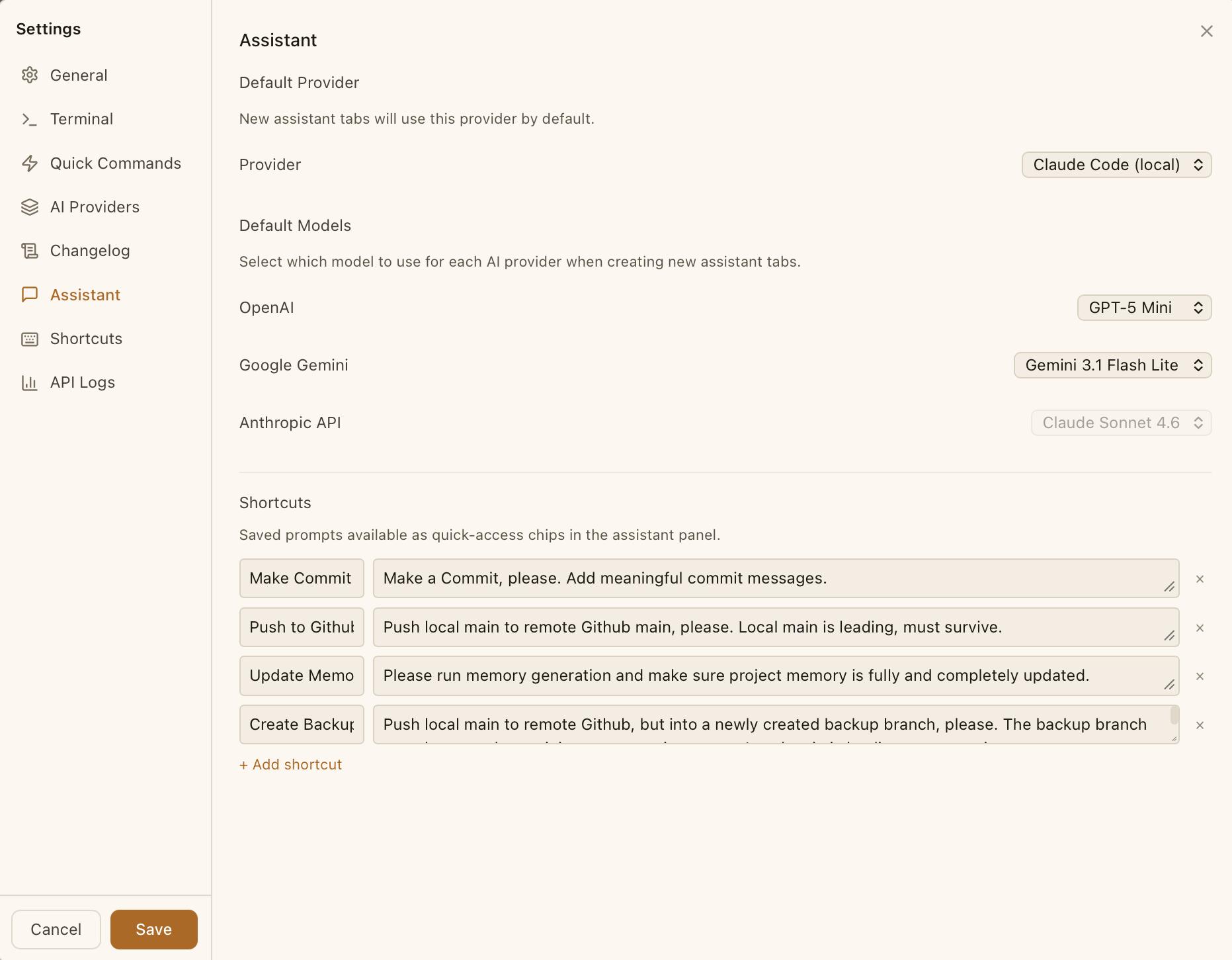
Click the + button in the Assistant tab (right panel) to create a new assistant. Your configured providers appear in the dropdown. See Multi-AI Assistants.
SpecWriter
When opening SpecWriter, the model dropdown shows models from all providers with valid keys. The default provider can be configured in Settings > SpecWriter.
Model Pricing
The Settings panel shows an editable cost table for each model: Input and Output per 1M tokens (USD). These values are pre-filled with current defaults and used to calculate cost estimates in Assistant tabs and the API Logs panel.
If you have enterprise pricing or volume discounts, adjust these values to match your actual costs.
Security
API keys are stored locally in your CodeMantis application data directory (~/Library/Application Support/dev.codemantis.app/). They are never sent to CodeMantis servers — they're only used for direct API calls to the respective providers.
Tips
- Start with one key. Google Gemini is a good first choice — Gemini Flash Lite is fast and inexpensive, perfect for changelog generation.
- You don't need all three. Most users only need one or two providers.
- Check the API Logs panel in Settings to monitor usage and costs across all providers.
Related Articles
- AI-Powered Changelog — Enable and configure automatic session summaries
- Multi-AI Assistants — Use models from OpenAI, Google, and Anthropic alongside Claude Code
- SpecWriter — Write implementation-ready specifications
- Settings Reference — Complete settings guide