
AI-Powered Changelog
Enable automatic session summaries, choose your AI provider, and use the changelog to stay organized.
Overview
The AI-Powered Changelog creates human-readable summaries of what happened during each Claude Code session. Instead of reviewing git diffs or scrolling through conversation history, you get a concise narrative of what was built, changed, or fixed — written by an LLM that understands the context of your work.
Why Use the Changelog
Without a changelog, your work lives only in conversation history and git diffs. The changelog turns that into structured, searchable entries:
- Track what was built across sessions without manual note-taking
- Generate commit messages and PR descriptions from changelog entries
- Onboard collaborators with a session-by-session narrative of recent work
- Feed the Project Log — a bird's-eye timeline of all changes across every session (see Project Log)
Enabling the Changelog
Add an API key
Open Settings (Cmd + ,) and navigate to the AI Providers tab. Enter an API key for at least one provider (OpenAI, Google Gemini, or Anthropic). See Setting Up AI API Keys for detailed instructions.
Configure the changelog
Navigate to the Changelog tab in Settings. Select your preferred provider and model from the dropdowns.
Enable auto-generate
Toggle Enable auto-changelog to ON. CodeMantis will now automatically generate a changelog entry after each coding turn.
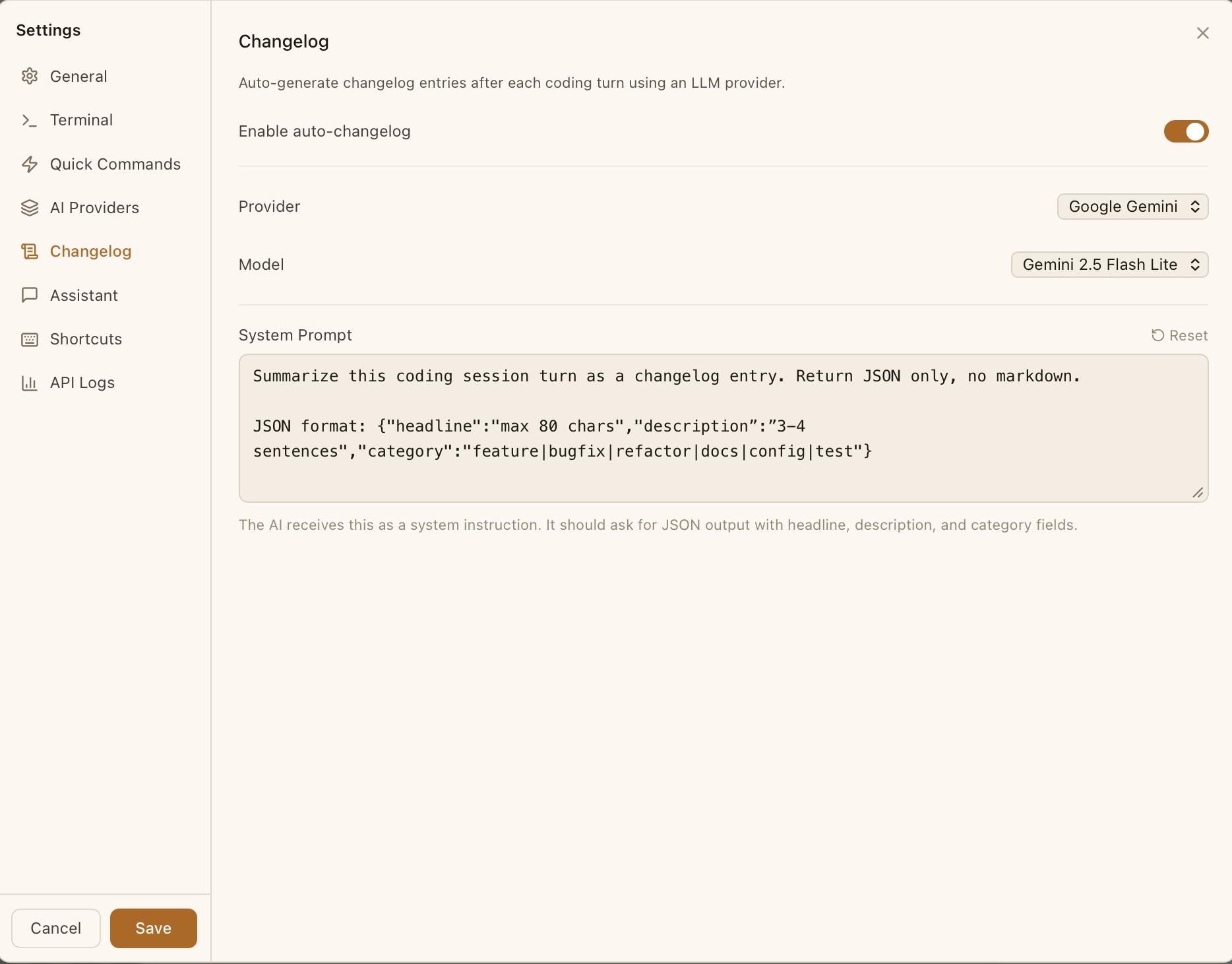
The changelog uses a small number of tokens per session. With Gemini Flash Lite (the default), the cost is typically fractions of a cent per entry.
Custom System Prompt
The Settings panel includes an editable system prompt that controls how entries are generated. The default prompt asks for JSON output with headline, description, and category fields. Click Reset to restore the default if you've customized it.
Choosing a Provider
| Provider | Recommended Model | Strengths |
|---|---|---|
| Google Gemini | Latest Gemini Flash Lite | Fastest, most cost-effective. Good default choice. |
| OpenAI | Latest GPT model | Strong summaries, moderate cost. |
| Anthropic | Claude Sonnet | Highest quality narratives. Separate from your Claude Code subscription. |
You can change providers at any time in Settings. Existing changelog entries are not affected.
How It Works
After each coding turn, CodeMantis sends the session's conversation history and file changes to the selected LLM. The model analyzes:
- What files were created, modified, or deleted
- The intent behind the changes (from your prompts and Claude's responses)
- The scope of the work (new feature, bug fix, refactoring, etc.)
The result is a structured summary that reads like a changelog entry, not a raw list of diffs.
Per-Session Summaries
Each coding turn produces its own changelog entry. Open the Changelog tab in the right panel (Cmd + Shift + L) to see entries for the current session.
Each entry shows:
- A category icon with color — feature (green), fix (red), refactor (blue), and others
- A category badge (e.g. "Feature", "Fix", "Refactor")
- A timestamp
- A headline and description (rendered as Markdown)
- Technical details — expandable section ("Show details") with implementation specifics
- A tools summary — e.g. "5 edits, 3 reads, 2 bash commands"
- Files changed — small monospace badges with full paths on hover
A typical entry looks like:
### Feature — 2:34 PM

**Added** user authentication flow with email/password login.
- Created `src/app/auth/login/page.tsx` with form validation
- Added `src/lib/auth.ts` with session management utilities
- Configured middleware for protected routes
Browsing the Changelog Feed
The changelog panel supports:
- Scrolling through past entries in reverse chronological order
- Searching across all entries by keyword (headlines, descriptions, file names)
- Expanding/collapsing individual entries to show or hide technical details
- Copying any entry to your clipboard in Markdown format — paste into Slack, a PR description, or project documentation
Per-Project Views
The changelog feed is scoped to each session. For a unified view across all sessions in the project, use the Project Log — it aggregates every changelog entry from every session into a single timeline.
Tips
- Use Gemini Flash Lite as your default provider — it's fast and nearly free for changelog generation.
- Copy entries for commit messages. The headline + description format maps directly to conventional commit messages.
- Check the Project Log before standups to recall what you accomplished across multiple sessions.
- The changelog is retroactive — if you enable it mid-project, future sessions will generate entries. Past sessions without entries remain unchanged.
Related Articles
- Setting Up AI API Keys — Configure provider API keys
- Project Log — Unified changelog timeline across all sessions
- Sessions & History — Managing multiple sessions