
Chat Panel & Input Area
The conversation interface — message display, thinking indicators, sub-agents, attachments, and model selection.
Overview
The Chat Panel is the center of CodeMantis. It shows your conversation with your active coding agent — Claude Code or Codex — including your messages, the agent's responses, thinking indicators, and turn statistics. All tool operations (file edits, bash commands, file reads) are routed to the Activity Feed in the right panel, keeping the chat focused on conversation text. Each session carries an agent_id; the input toolbar adapts to show the right controls for the active agent (the Mode Selector for Claude Code, the Codex Policy Pill for Codex).
Messages
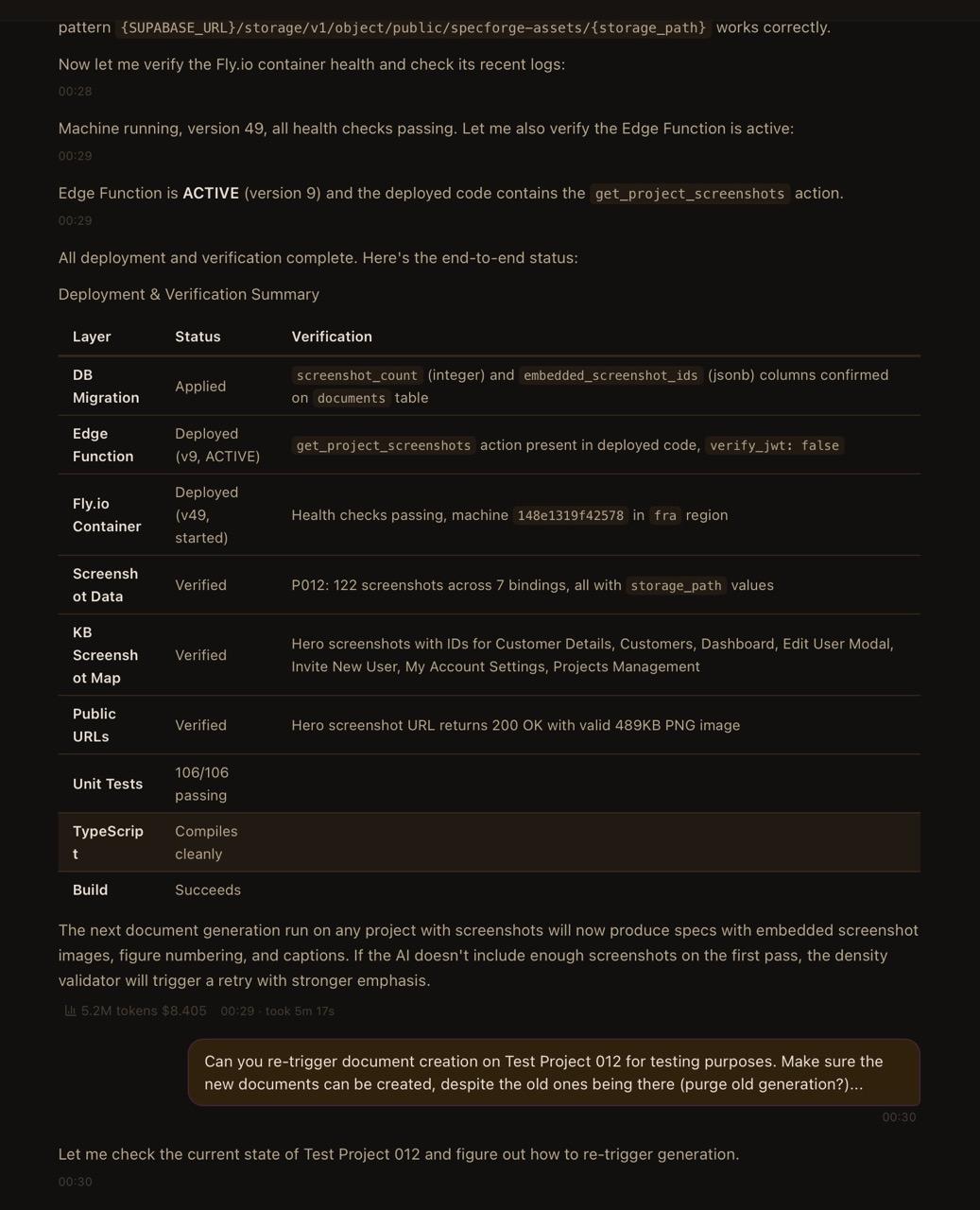
Your messages appear right-aligned in accent-colored bubbles with a timestamp below. Hover to reveal a copy button on the left.
Claude's responses appear left-aligned with no background bubble. Content is rendered as full GitHub Flavored Markdown — headings, bold, italic, lists, tables, and code blocks with syntax highlighting. Each code block shows a language label and a Copy button.
Below each completed response:
- A turn stats badge showing total tokens and cost (e.g. "1.2K tokens $0.02") — click to see the detailed breakdown
- A timestamp and duration (e.g. "took 12s")
Activity Chips appear above assistant messages when Claude performed tool operations during that turn. These are compact badges that link to the Activity Feed for details.
Files You Received (Deliverables)
When a turn produces user-facing files — a PDF, an image, a report, a spreadsheet, a document — the assistant's message shows a "Files you received" row of file chips beneath the text. This is a deliberate exception to the "chat shows only conversation text" rule. Each chip carries a type icon for its kind: PDF, image, document, spreadsheet, presentation, data, archive, audio, video, code, or text.
- Click a chip to open the file. Code and text files open in the in-app File Viewer (switching to the Files tab); every other kind opens in your OS default application.
- Show in folder (folder-search icon) reveals the file in Finder (macOS) or File Explorer (Windows).
- Up to 6 chips are shown at once; a "+N more" button expands the rest.
Thinking Indicator
When Claude is busy but not yet streaming text — reading files, planning, or executing tools — a pill-shaped indicator appears at the bottom of the chat:
- Three animated accent-colored dots
- An activity label that updates in real-time (e.g. "Reading file...", "Editing settings.ts", "Running command...", "Compacting context...")
- An elapsed timer showing how long Claude has been working (e.g. "1m 23s")

The indicator is pinned outside the scroll area so it's always visible, even when you've scrolled up to read earlier messages.
Sub-Agent Panel
When Claude launches sub-agents (parallel workers for complex tasks), an expandable panel appears below the thinking indicator.
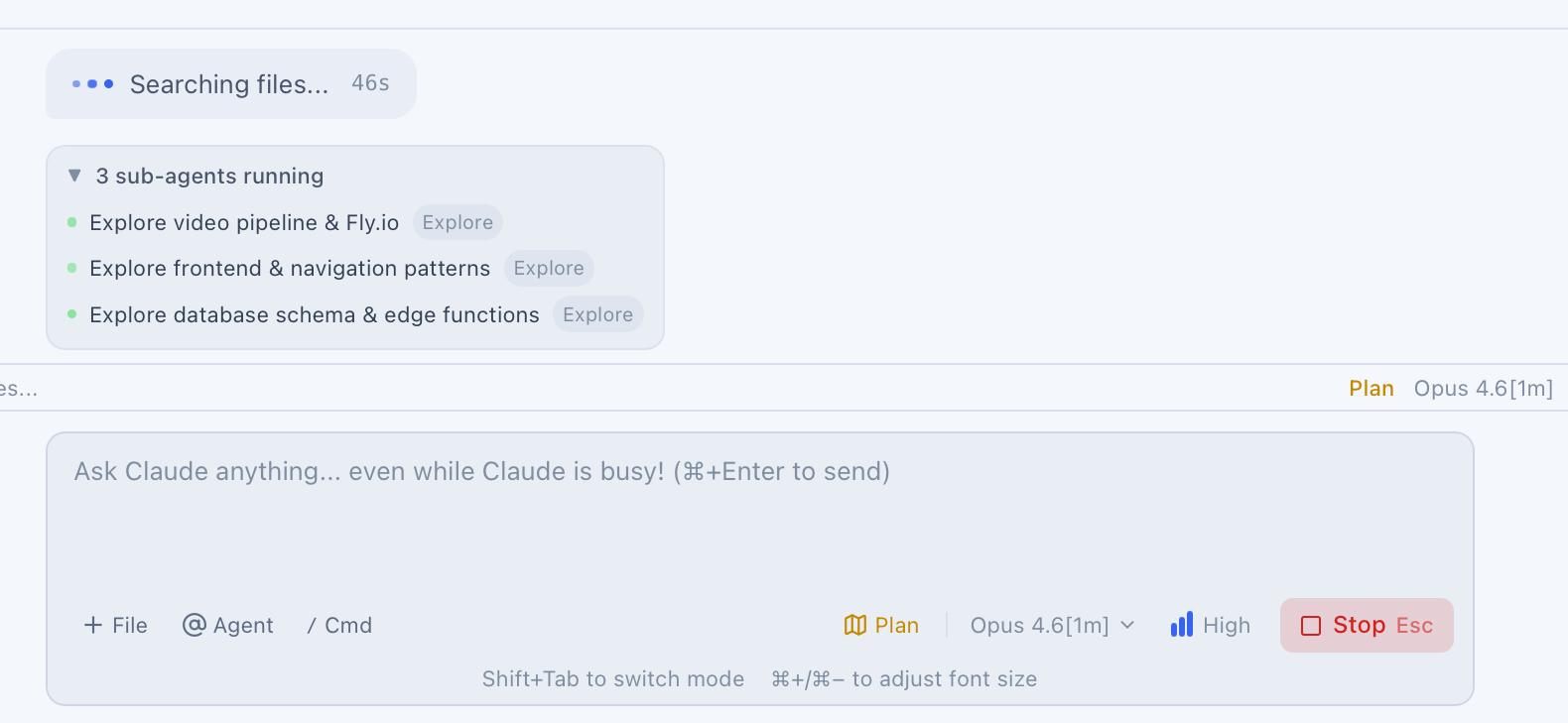
The panel shows:
- A summary header with the count (e.g. "3 sub-agents running") and total token usage
- Click to expand and see each agent's details:
- Description and type badge
- Tool count and token count
- Elapsed time
- Status dot — yellow (preparing) or green (running)
The panel auto-expands when 3 or fewer agents are running and collapses with a toggle arrow when there are more.
Trivia Cards
If trivia is enabled in Settings, fun fact cards appear below the thinking indicator after a 3-second delay while Claude is working. Each card shows a topic badge (e.g. "SCIENCE", "HISTORY"), a fact, and a "Disable trivia" button. Special "easter egg" facts have a gold border.
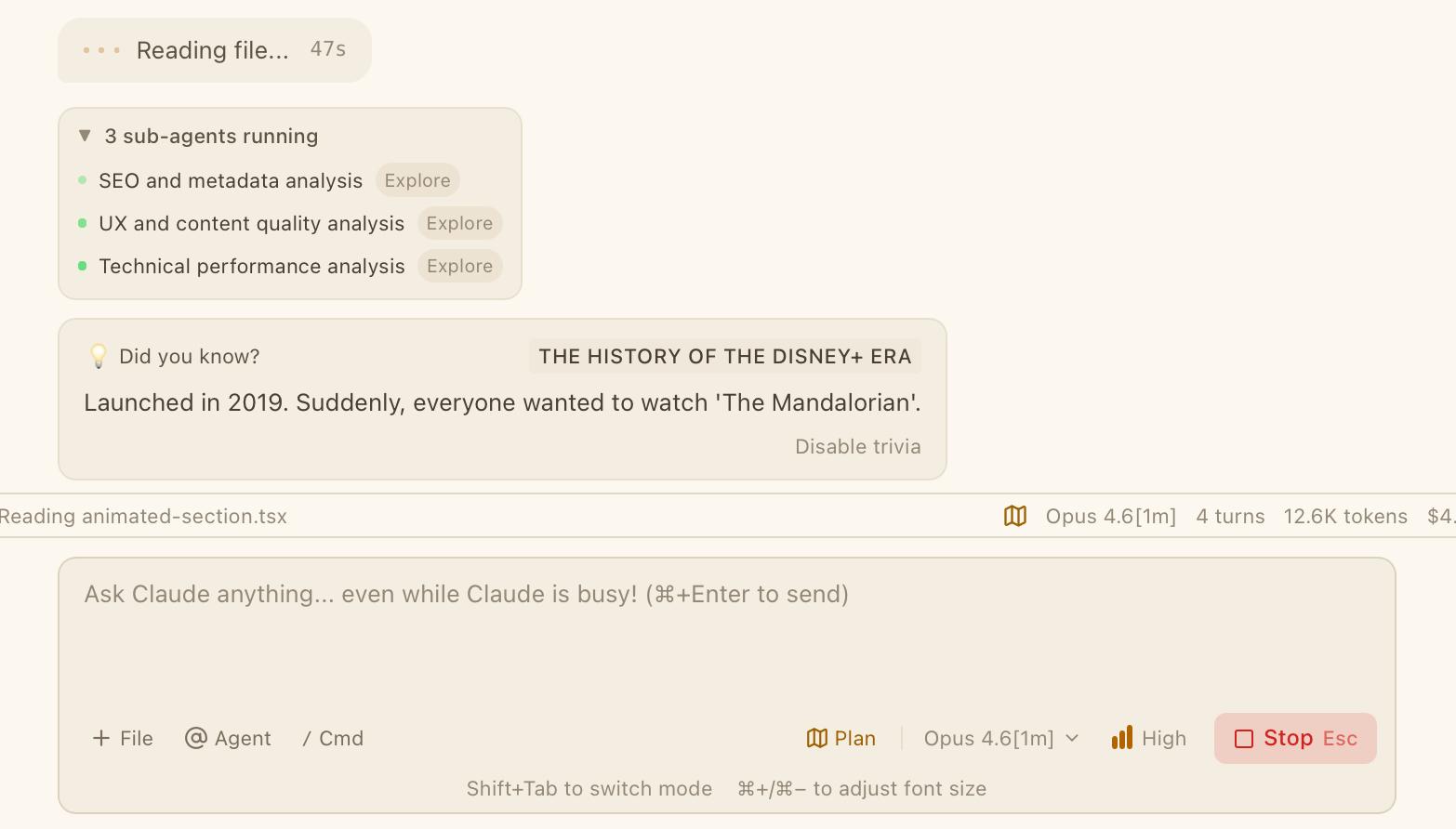
Toggle trivia on or off in Settings > General > Trivia Cards, or click "Disable trivia" on any card.
Session Status Bar
A compact bar pinned at the bottom of the chat panel gives you a persistent overview without interrupting the conversation.
Left side:
- Status dot + label: Idle (gray), Busy (pulsing green), or Compacting (pulsing yellow)
- Elapsed timer when busy
- Current activity detail (e.g. "Editing App.tsx", "3 agents")
Right side:
- Mode icon — shield (Normal), green shield-check (Auto-Accept), yellow map (Plan), blue sparkles (Auto), green zap (Don't Ask), or red shield-alert (Bypass)
- Model name (e.g. "Sonnet")
- Turn count
- Rate limit utilization (shown when > 50%, yellow when > 80%)
- Total session tokens and cost
- Context usage percentage (yellow at 70%, red at 90%)

The Input Area
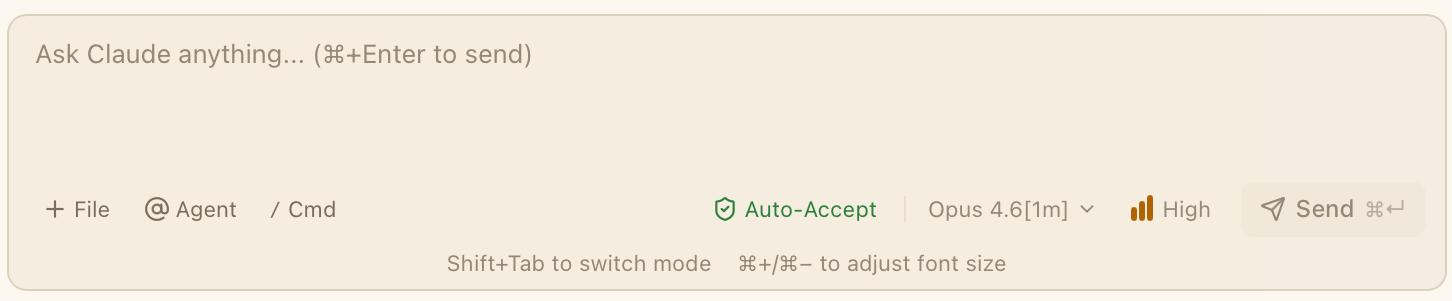
The Input Area sits at the bottom of the center panel. It's where you type messages, attach files, and control the session.
Sending Messages
Type your message in the multi-line text area (grows from 3 to 8 rows as you type) and press Cmd + Enter to send. The message appears as a user bubble and the input clears immediately.
You can type messages while Claude is working — the input is never locked. Queue up your next instruction while Claude finishes the current one.
Attachments
Attach files to your message in three ways:
- Click + File — opens a file picker with filters for images, documents, code files, and all files
- Drag and drop — drag files from Finder into the input area
- Paste images — press Cmd + V to paste an image from your clipboard
Attached files appear as thumbnail cards above the text area. Click an image attachment to preview it full-screen. Click the x on any attachment to remove it.
When you send a message with attachments, the file paths are prepended as [Attached file: /path/to/file] references.
Voice Dictation & Talk & Point
Click the Dictate button (microphone icon, "Dictate (speech to text)") in the action bar to speak your prompt instead of typing it. The text area is replaced by the Speech Panel:
- A live "Recording" indicator with a microphone VU meter, plus an append-only raw transcript pane showing what you have said so far.
- Language pills — Auto / RO / EN / DE — hint the transcription language. Whatever language you speak, the final structured prompt is always written in English.
- Two model selectors: Transcription model (mic icon) and Structuring (reasoning) model (wand icon). When you stop, the structuring model turns your raw spoken transcript into a clean, well-formed prompt.
- Click the Dictate button again ("Stop dictation") to finish.
Talk & Point. The "Point" toggle (mouse-pointer icon) in the Speech Panel lets you point while you speak. Hover a UI area for a moment — or click it — and the transcript records a [pointing at: ...] marker naming what your cursor is over. Spoken instructions like "move this button over here" keep their target, because the structuring model translates the markers into concrete UI references in the final prompt. Markers are dwell-based (about a third of a second on a new target), so moving the mouse around doesn't spam the transcript. The toggle state persists as the speechTalkAndPoint setting.
Dictation requires an OpenAI API key
Voice dictation uses OpenAI's speech APIs, so it needs an OpenAI API key (Settings > AI Providers). The defaults are gpt-4o-mini-transcribe for transcription and gpt-4o-mini for structuring. If no microphone is available, the panel reports "Microphone/recording is not available in this environment"; if permission is denied, "Microphone access denied. Allow it in system settings and try again."
Model Selector
Click the model name in the action bar to switch models for the current session:
- Default — uses the model set in your Claude Code configuration
- Sonnet — fast, capable, good for most tasks
- Opus (1M) — most capable, 1M token context window
- Sonnet (1M) — fast with 1M token context window
- Haiku — fastest, good for simple tasks
Thinking Effort
A small bars-graphic plus label (e.g. "Medium") and a chevron — controls how much reasoning effort Claude applies. The bar count and the available levels come from the running model's capability manifest: Sonnet exposes 4 levels, the Default account model exposes 5 (including "XHigh"), and Haiku has none (the selector is hidden).
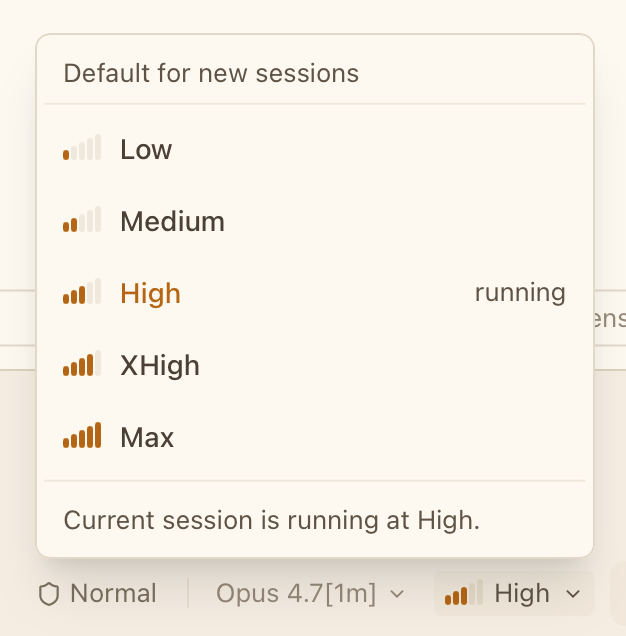
Click the selector to open the dropdown:
- Pick a level to set it as the default for new sessions (persisted as
defaultThinkingEffortin Settings — passed to every new CLI session via--effort). - A "running" badge marks whichever level the current CLI process started with.
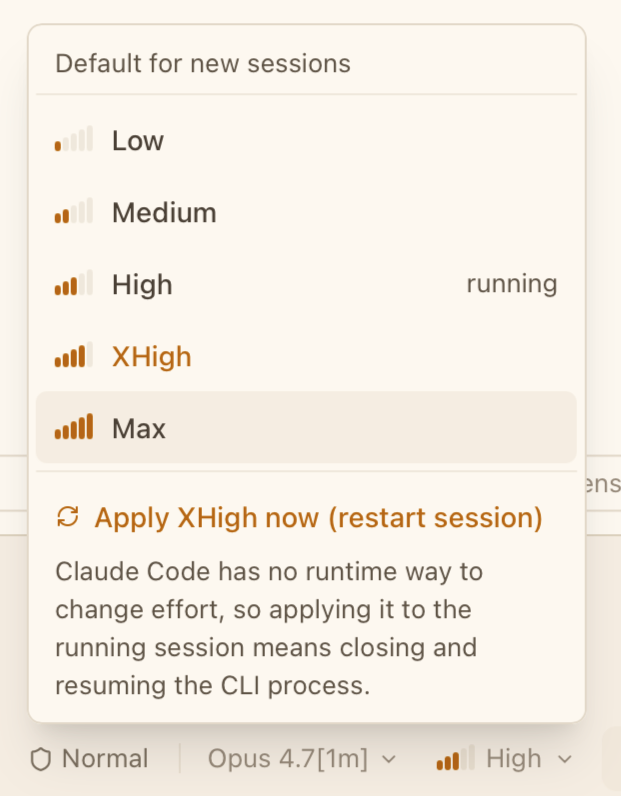
Claude Code has no runtime way to change effort mid-session, so to apply a new level to the running session, click "Apply level now (restart session)" at the bottom of the dropdown. CodeMantis pauses the CLI process and resumes it with --effort <level> --resume <sessionId>, preserving the existing conversation. The running session can only be restarted while idle.
Mode Selector (Claude Code sessions)
Shows the current session mode with an icon. Click to switch between Normal, Auto-Accept, Plan, Auto, Don't Ask, and Bypass. Press Cmd + . or Shift + Tab to cycle through modes. Only shown when the active session is a Claude Code session.
Codex Policy Pill (Codex sessions)
For Codex sessions, the Mode Selector is replaced by the Codex Policy Pill — two independent dials for sandbox (read-only / workspace-write / danger) and approval policy (untrusted / on-request / on-failure / never). Click the pill to change either dial. See Session Modes Explained for the full reference.
Super-Bro Toggle
A shield-icon button in the left side of the action bar (next to / Cmd) enables or disables Super-Bro proactive guidance. When active the icon is highlighted in accent color. Super-Bro is on by default — it stays quiet unless it has something useful to say.
Command Palette
Type / at the beginning of the input to open the Command Palette. Navigate with arrow keys, select with Enter.
In-Chat Search (Cmd + F)
Press Cmd + F while a session is active to open a search bar pinned at the top of the Chat Panel. As you type, every match across the loaded message history is highlighted in both prose and code blocks, and a "1 / N" counter shows your position.
- Up / Down arrows (or
Enter/Shift + Enter) — step through matches; the focused match auto-scrolls into view. - Escape or the X button — dismiss.
When the search bar is open, CodeMantis auto-loads any older messages that are still off-screen so the search covers the full conversation, not just the visible window.
Attention When It Matters
When CodeMantis is not the foreground window, it gets your attention the native way — the dock icon bounces on macOS, the taskbar button flashes on Windows — whenever a session finishes a turn, a tool or plan approval is queued, or a question is waiting for you.
- The bounce/flash persists until you focus the window and clears the instant you do.
- A merely slow or silent run never triggers it — attention is reserved for moments that genuinely need you.
- Nothing happens while CodeMantis is already in the foreground; the in-app surfaces (thinking indicator, status bar, approval prompts) cover that case.
There is no setting to configure. The behavior is gated purely by "you are away and something genuinely needs you."
Error States
Session Crash
If a Claude Code session crashes, the last assistant message shows a blue "Restart Session" button. Click it to start a new Claude Code process. Your project files remain untouched — only the conversation is affected.
API Error
If an API error occurs, the error message shows a blue "Retry" button. Click to retry the failed request.
Plan Complete
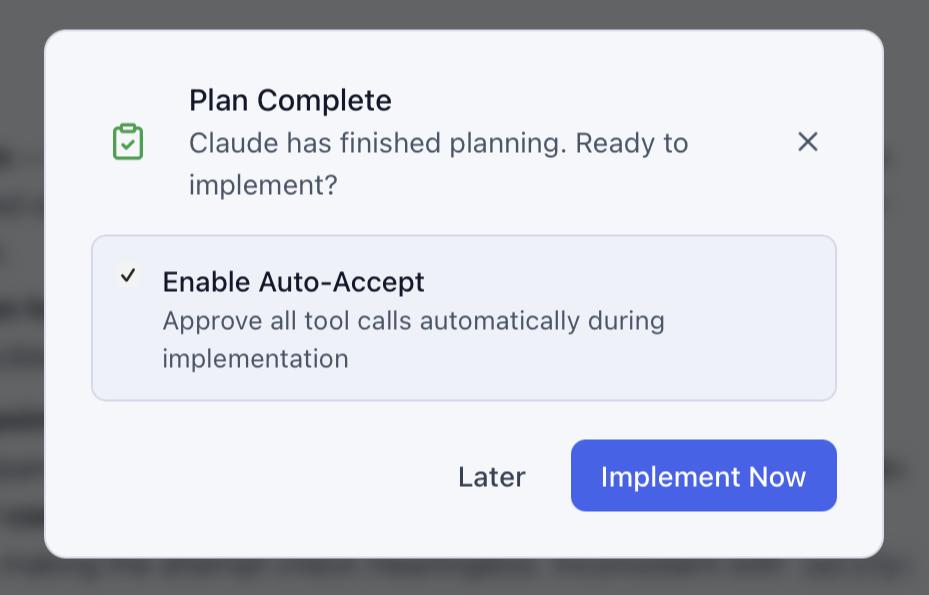
When a Plan mode conversation finishes, a dialog appears with an "Implement Now" button and an optional "Enable Auto-Accept" checkbox. Click "Implement Now" to send "Go ahead, implement the plan." to Claude and optionally switch to Auto-Accept mode.
Keyboard Shortcuts
| Shortcut | Action |
|---|---|
| Cmd + Enter | Send message |
| Escape | Stop / interrupt Claude |
| / | Open Command Palette (at start of input) |
| Cmd + / | Open Command Palette (global) |
| Cmd + . | Cycle through session modes |
| Shift + Tab | Cycle through session modes |
| Cmd + F | Open in-chat search |
| Cmd + V | Paste image from clipboard |
| Cmd + = | Zoom in |
| Cmd + - | Zoom out |
| Cmd + 0 | Reset zoom |
Tips
- The chat shows only conversation text. All file operations, edits, and command executions appear in the Activity Feed. This keeps the chat clean and focused.
- Watch the Session Status Bar at the bottom for model, tokens, cost, and context usage at a glance.
- Press Escape to stop Claude at any time. This interrupts the current generation immediately.
- Paste screenshots directly with Cmd + V — great for sharing UI mockups or error screenshots with Claude.
- Use the camera button in the title bar to screenshot the Preview Browser directly into the chat — perfect for asking Claude to fix visual bugs.