
Slash Commands & CLI Overlay
Access built-in commands, CLI features, and custom skill templates directly from the chat input.
Overview
Slash commands give you quick access to actions and workflows by typing / in the chat input. CodeMantis organizes commands into three categories — each with a distinct badge in the Command Palette so you always know what will happen when you select one.
The Command Palette
Type / at the beginning of the input area to open the Command Palette. A floating dropdown appears above the input showing all available commands.
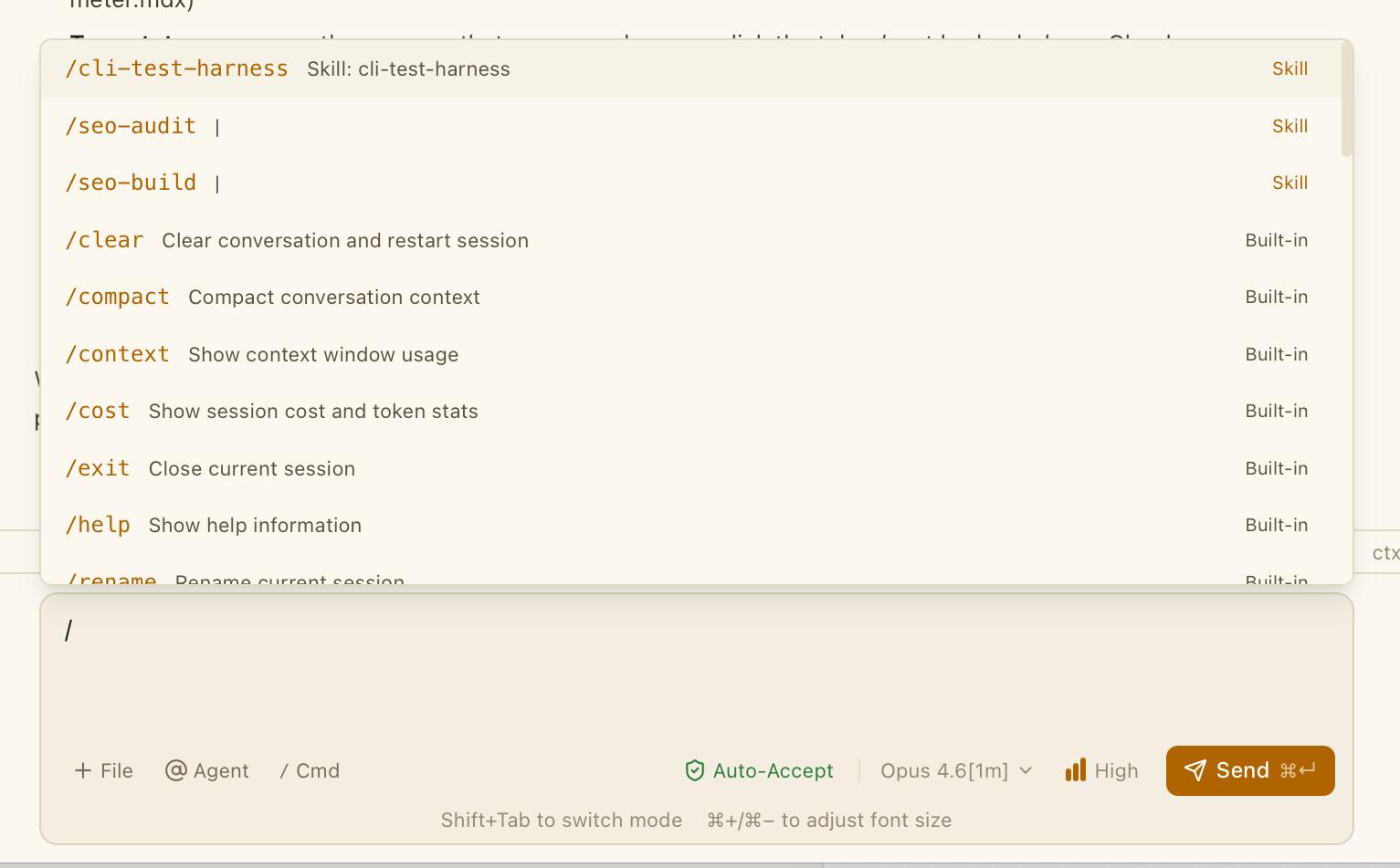
Each command displays:
- The command name in monospace accent color (e.g.
/commit,/doctor) - A description
- An argument hint when the command is selected (e.g.
<new name>for/rename) - A category badge indicating what happens when you select it:
- Skill (accent color) — expands into a prompt template sent to Claude
- Built-in (dim) — executes instantly within CodeMantis
- Opens CLI (yellow) — opens the Claude Code CLI overlay
Navigate with Arrow keys, select with Enter, dismiss with Escape, or autocomplete with Tab.
Built-in Commands (7)
These execute instantly within CodeMantis — no CLI terminal opens, no process restart needed.
| Command | Description |
|---|---|
/clear | Clear conversation and restart the Claude Code process. Messages and activity are removed, but the project stays open. |
/compact | Summarize conversation history to free up context window space. Essential when the context meter is getting full. |
/context | Display how many tokens are used out of the maximum context window. |
/cost | Show total session cost (USD), turn count, input/output tokens, and cache statistics. |
/exit | Close the current session. Same as clicking x on the session tab. |
/help | Display a formatted help message listing all command categories and key commands. |
/rename <name> | Rename the current session tab. Usage: /rename My Feature Work |
CLI Commands (35)
These commands open the CLI Overlay — a full-screen terminal that pauses your current session and launches an interactive Claude Code process. When you close the overlay, the session resumes automatically.
Essential CLI Commands
| Command | Description | When to Use |
|---|---|---|
/init | Initialize CLAUDE.md in project | First thing after cloning a repo. Claude walks you through creating a tailored CLAUDE.md interactively. |
/config | Configure Claude Code preferences | Change global settings: default model, allowed tools, editor, theme, custom instructions. |
/model | Change model | Switch between Claude models (Sonnet, Opus, Haiku). |
/doctor | Run diagnostics | Checks binary version, authentication, configuration, and MCP connectivity. The go-to command when something isn't working. |
/mcp | Manage MCP servers | Add, remove, configure MCP servers from the CLI. Alternative to the MCP modal. |
/permissions | Manage permissions | Configure which tools Claude Code can use without asking. Fine-grained auto-approval control. |
/hooks | Manage hooks | Configure event hooks that run before/after Claude Code operations. |
/memory | Edit CLAUDE.md | Open CLAUDE.md in an interactive editor without leaving the conversation. |
/diff | Show session diff | Git-style diff of all changes Claude made in the current session. Great for reviewing before committing. |
Session Management Commands
| Command | Description |
|---|---|
/fork | Branch the current conversation. The new fork starts with the same context but diverges — useful for trying different approaches. |
/resume | Resume a previously saved session by ID. Shows available sessions. |
/rewind | Go back to a previous point in the conversation, discarding subsequent messages and changes. |
/export | Export conversation history to a file (JSON or Markdown). |
/copy | Copy Claude's most recent response to the system clipboard. |
/add-dir | Add a directory's contents to conversation context. |
Mode and Behavior Commands
| Command | Description |
|---|---|
/fast | Toggle between detailed and fast (concise) response modes. |
/plan | Toggle plan-only mode (no code changes). Same as the mode selector in the input area. |
Status and Info Commands
| Command | Description |
|---|---|
/stats | Display detailed usage statistics for your Claude Code installation. |
/status | Show current state of the Claude Code process, connection, and session. |
/release-notes | Display release notes for the current Claude Code version. |
/skills | List all available custom skills from .claude/commands/ and .claude/skills/. |
Account Commands
| Command | Description |
|---|---|
/login | Authenticate with Anthropic. Usually not needed — CodeMantis handles this automatically. |
/logout | Sign out of the current Claude account. |
Configuration Commands
| Command | Description |
|---|---|
/theme | Change the Claude Code CLI terminal theme (separate from CodeMantis themes). |
/vim | Toggle vim-style keybindings in the CLI. |
/keybindings | Customize keyboard shortcuts for the CLI. |
/statusline | Customize what information appears in the CLI status bar. |
/terminal-setup | Configure terminal integration settings. |
/sandbox | Configure sandboxing behavior for tool execution. |
Integration Commands
| Command | Description |
|---|---|
/agents | Manage agent configurations. |
/plugin | Install, remove, and configure Claude Code plugins. |
/remote-control | Configure remote control and API access settings. |
/chrome | Open Chrome DevTools integration for web debugging. |
/desktop | Open desktop application integration settings. |
/ide | Configure IDE integration settings. |
How the CLI Overlay Works
Understanding the CLI Overlay lifecycle is important — it behaves differently from the built-in commands.
You select a CLI command
Select a command with the "Opens CLI" badge, or press Cmd + / to open the overlay directly.
CodeMantis pauses the current session
The stream-json session is paused. No data is lost.
A terminal opens
A PTY terminal launches with claude --resume {session_id} in interactive mode.
You re-enter the command
Important: the slash command is not automatically forwarded. You need to type the command again inside the CLI terminal (e.g. /model, /doctor).
Interact with the CLI
You have full access to Claude Code's interactive CLI — the same interface you'd get by running claude in a terminal.
Close when done
Press Escape or click the x button. The overlay closes, the PTY is killed, and the stream-json session resumes automatically. No work is lost.
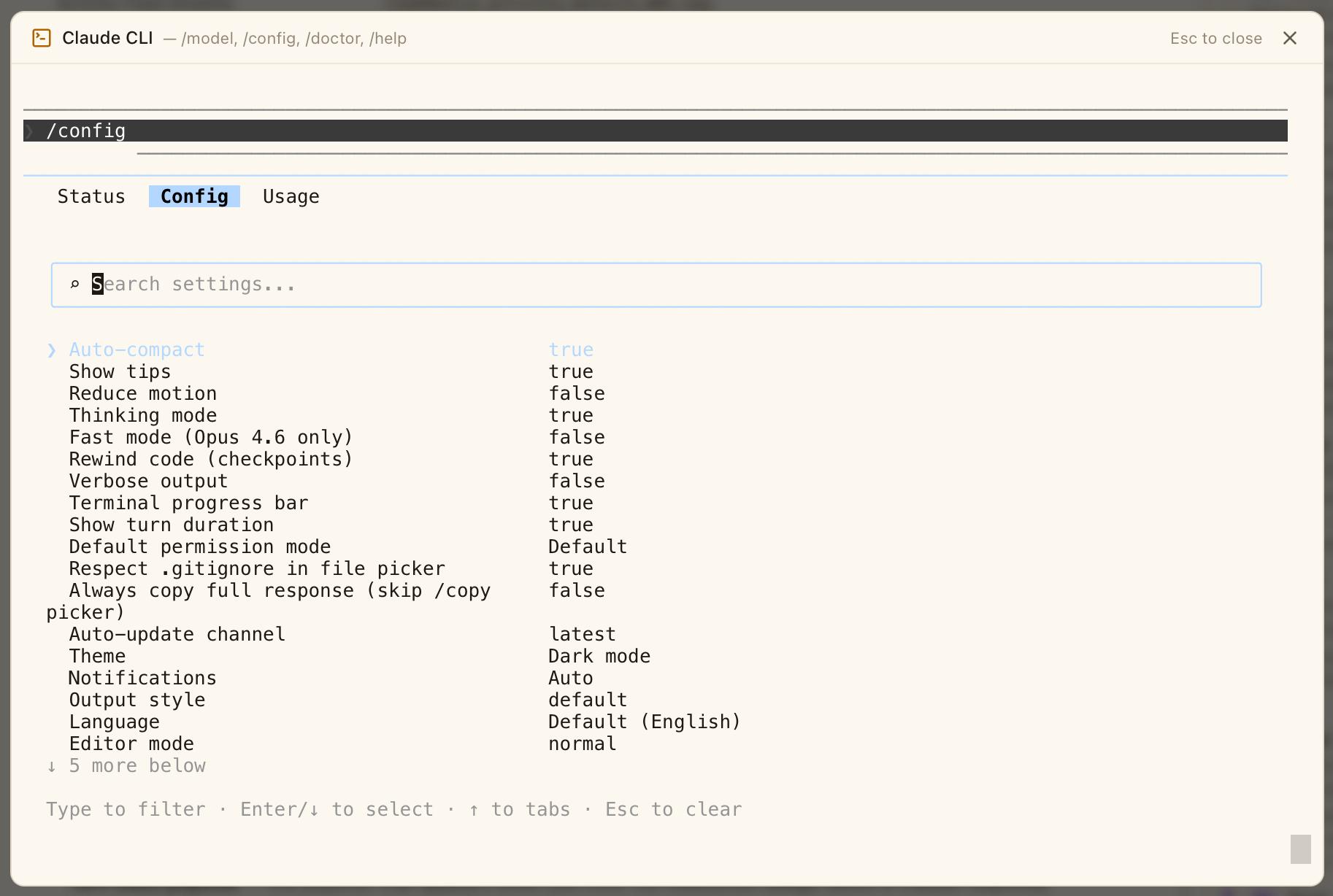
The CLI Overlay does not auto-send the command you selected. You must re-enter it inside the terminal. This is by design — it gives you full control over the interactive CLI session.
Custom Skill Commands
Skills are the most powerful command type. They are custom commands created by you or your project that expand into prompt templates sent to Claude Code.
Where Skills Live
| Location | Scope | Priority |
|---|---|---|
{project}/.claude/commands/*.md | Project-level | Highest (overrides user-level) |
{project}/.claude/skills/*/SKILL.md | Project-level (skill format) | High |
~/.claude/commands/*.md | User-level (all projects) | Normal |
~/.claude/skills/*/SKILL.md | User-level (skill format) | Lower |
Project-level commands override user-level commands with the same name.
Creating a Skill Command
Create a .md file
Place it in your project's .claude/commands/ directory. The filename becomes the command name.
Example: .claude/commands/review.md becomes /review.
Write the prompt template
The file content is the prompt that gets sent to Claude when you invoke the command.
Review the code I just wrote for:
- Bugs and logic errors
- Security vulnerabilities
- Performance issues
- Code style and readability

Focus on the files changed in this session.
Use it
Type /review in the chat input. The prompt expands and is sent to Claude.
Frontmatter Options
Add optional YAML frontmatter at the top of the .md file to customize behavior:
---
name: custom-name          # Override the filename-derived name
description: My command    # Shown in the command palette
argument-hint: <file>      # Placeholder text for arguments
model: claude-sonnet-4     # Force a specific model for this command
user-invocable: false      # Hide from the command palette
allowed-tools: Read, Write # Restrict which tools can be used
context: fork              # Fork the conversation context
---| Option | Description |
|---|---|
name | Override the command name derived from the filename |
description | Description shown in the Command Palette |
argument-hint | Placeholder text shown when the command is selected (e.g. <file>) |
model | Force a specific Claude model for this command |
user-invocable | Set to false to hide from the Command Palette (the skill can still be invoked programmatically) |
allowed-tools | Comma-separated list of tools the command can use (e.g. Read, Write) |
context | Set to fork to run the command in a forked conversation context |
Template Variables
Use these variables in the command body to make skills dynamic:
| Variable | Description |
|---|---|
$ARGUMENTS / ${ARGUMENTS} | All arguments after the command name |
$0 through $9 | Individual positional arguments |
${CLAUDE_SESSION_ID} | Current CLI session ID |
${CLAUDE_SKILL_DIR} | Directory containing the skill file |
!`command` | Shell command expansion (executed during skill loading) |
Example — a skill that reviews a specific file:
---
description: Review a specific file for issues
argument-hint: <filepath>
---

Review the file at $ARGUMENTS for bugs, security issues, and performance problems.
Provide a summary of findings with line numbers.
Usage: /review src/utils/auth.ts
Commands vs. Skills Format
There are two directory conventions:
- Commands (
.claude/commands/) — Simple.mdfiles. The filename is the command name. Best for quick, single-file prompt templates. - Skills (
.claude/skills/) — Folders containing aSKILL.mdfile. Best for complex skills that may include supporting files or configuration.
Slash Commands in Assistant Tabs
Claude Code assistant tabs also support a subset of slash commands. Type / in an assistant's input to open the palette. Supported commands: /help, /clear, /context, /cost, /exit, and /rename.
Quick Reference
INSTANT (Built-in):
  /help      Show help            /clear    Clear & restart
  /context   Context usage        /cost     Session cost
  /compact   Free up context      /exit     Close session
  /rename    Rename session

OPENS CLI (Interactive Terminal):
  /init      Create CLAUDE.md     /config   Global settings
  /model     Switch model         /doctor   Diagnose issues
  /mcp       MCP servers          /memory   Edit CLAUDE.md
  /diff      Session changes      /hooks    Event hooks
  /permissions  Tool permissions

CUSTOM:
  Project: .claude/commands/*.md   .claude/skills/*/SKILL.md
  User:    ~/.claude/commands/     ~/.claude/skills/
Keyboard Shortcuts
| Shortcut | Action |
|---|---|
| / | Open Command Palette (when typed at start of input) |
| Cmd + / | Open CLI Overlay directly |
| Arrow keys | Navigate Command Palette |
| Enter | Select command |
| Tab | Autocomplete command |
| Escape | Close Command Palette or CLI Overlay |
Tips
- Use
/doctoras your first troubleshooting step. It checks binary version, authentication, configuration, and MCP connectivity all at once. - Use
/initwhen you open a new project. It creates a tailored CLAUDE.md that helps Claude understand your codebase. - Use
/diffbefore committing. It shows all changes Claude made in the session so you can review before committing. - Use
/compactwhen context is running high. It reduces token usage by summarizing conversation history. - Create project-level skills for your team's common workflows. Commit them to
.claude/commands/so everyone on the project gets the same commands. - Use
$ARGUMENTSto make skills flexible — e.g./review src/auth.tspasses the file path into your review prompt template.
Branch Map
A full-width visual git graph that turns branches, commits, switches, merges, and syncing into plain-language buttons — with a safety dialog in front of anything destructive.
SpecWriter: Writing Better Specs
Use SpecWriter to create implementation-ready specification documents and verification checklists for whichever coding agent you've routed it to.