
Project Picker & Templates
Open, clone, scaffold, or resume a project — five tabs in one picker, including the new Resume Session tab.
Overview
The Project Picker is the single entry point for getting into a project. It has five tabs across the top:
| Tab | Purpose |
|---|---|
| Templates | Scaffold a new project from a curated starter template |
| Open Folder | Browse to and open an existing folder on disk |
| Clone | Clone a Git repository by URL |
| Recent | Reopen a recently used project folder |
| Resume Session | Jump back into a recent Claude session across all projects |
The dialog title updates to match the active tab ("Choose a Template", "Open Project", "Clone from Git", "Recent Projects", or "Resume Session"). Project Templates let you scaffold a new project with a single action — each template is a curated starter that includes framework boilerplate, recommended directory structure, and a pre-written CLAUDE.md file so Claude Code understands the project from the first prompt.
Opening the Project Picker
Launch the picker with Command + Shift + N or select New Project from Template in the File menu. This opens the picker on the Templates tab — switch tabs from the bar at the top.
Browsing Templates
Templates are organized into categories to help you find the right starting point:
- Frontend — React, Vue, and static site frameworks
- Full-Stack — Frameworks with built-in API layers
- Backend — API-only and server frameworks
- Documentation — Documentation site generators
- Mobile — Cross-platform mobile frameworks
Each template card shows the framework name, a brief description, and the key technologies included (e.g., TypeScript, Tailwind CSS, Prisma).
Available Templates
CodeMantis ships with the following templates:
| Template | Stack |
|---|---|
| Next.js | React, App Router, TypeScript, Tailwind CSS |
| Vite + React | React, Vite, TypeScript, Tailwind CSS |
| Vite + Vue | Vue 3, Vite, TypeScript |
| FastAPI | Python, FastAPI, Pydantic, SQLAlchemy |
| Astro | Astro, TypeScript, Tailwind CSS |
| Expo | React Native, Expo, TypeScript |
| Fumadocs | Next.js, Fumadocs, MDX |
| Nextra | Next.js, Nextra, MDX |
| SvelteKit | Svelte, SvelteKit, TypeScript |
| Hono | Hono, TypeScript, Cloudflare Workers |
The list is updated with new templates in app releases.
The Scaffold Process
When you select a template:
- Choose a directory — Pick where the project will be created on disk.
- Name the project — Enter a project name (used as the folder name).
- Scaffold — CodeMantis runs the framework's official CLI scaffolding command (e.g.,
create-next-app,npm create vite). - Generate CLAUDE.md — A
CLAUDE.mdfile is automatically created at the project root. It describes the stack, directory structure, available commands, and coding conventions for that framework. - Open the project — The new project opens in CodeMantis, ready for your first Claude Code session.
Why CLAUDE.md Matters
The generated CLAUDE.md file gives Claude Code immediate context about the project. Without it, Claude Code would need to scan files and infer the stack, which takes time and can lead to incorrect assumptions. With a well-written CLAUDE.md, Claude Code knows the framework, routing conventions, and preferred patterns from the start.
Resume Session Tab
The Resume Session tab lets you reopen a recent Claude session without first navigating to the right project — pick the conversation, and CodeMantis takes care of opening (or switching to) the project for you.
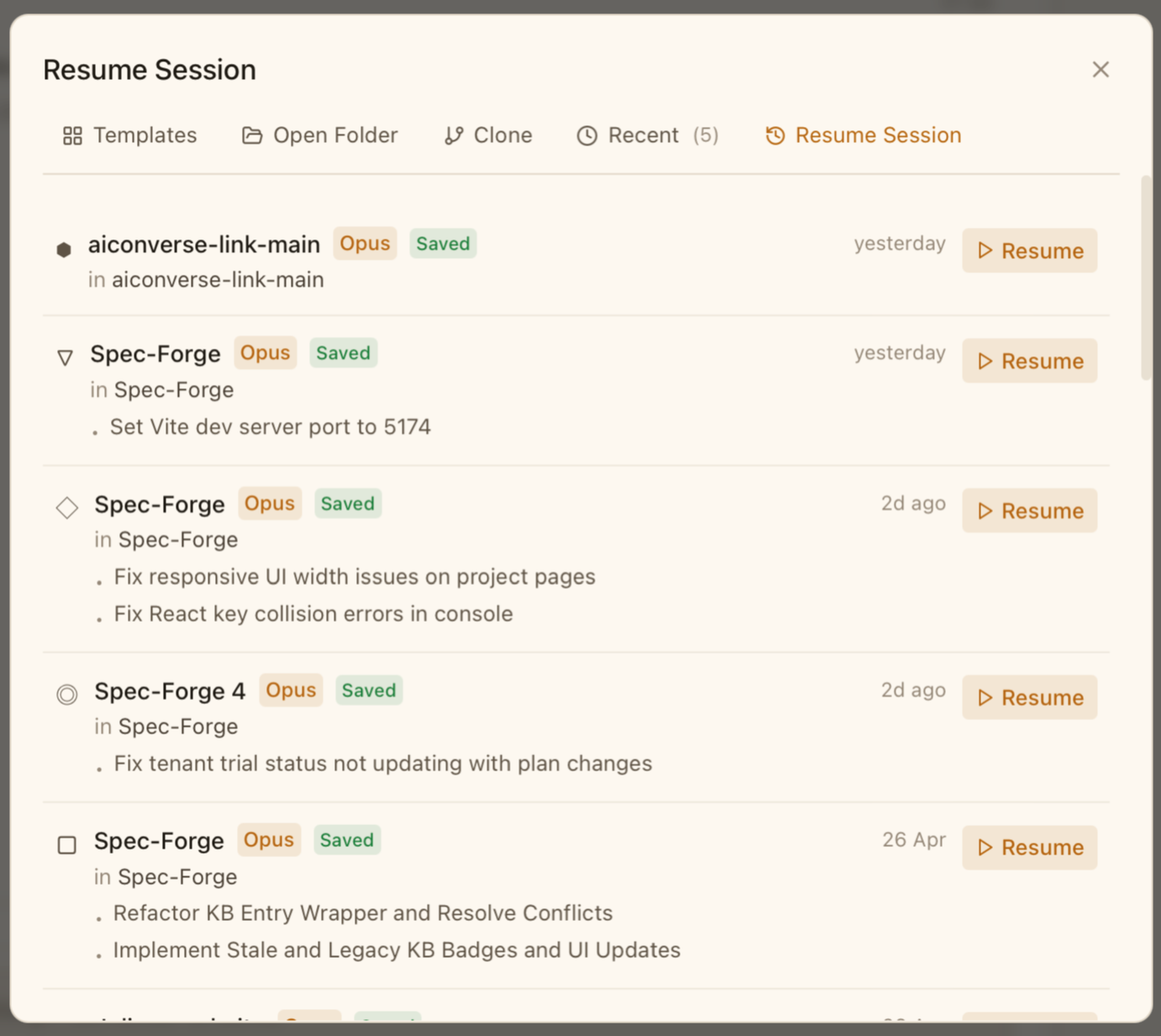
CodeMantis loads up to 20 recent sessions across all your projects, ordered by recency. Each row shows:
- The session name (e.g. "Spec-Forge")
- A model badge ("Opus", "Sonnet", "Haiku")
- A "Saved" badge if the full chat history was persisted by Session Persistence
- The project folder the session belongs to
- A relative timestamp ("yesterday", "2d ago", "26 Apr")
- The last few headlines from the conversation, so you can recognize the session at a glance
- A Resume button on the right
Click Resume to close the picker, open the matching project (if it isn't already), and rehydrate the saved Claude session — your conversation continues exactly where it left off.
If a session's project folder no longer exists on disk, an inline error appears on the row and the Resume button is disabled. Either restore the folder, or pick a different session.
For a per-project history view, use the Claude History tab inside an open project. Resume Session is the cross-project shortcut — Claude History is the project-scoped browser.
Auto-continue: Auto-Resume After Quota Resets
Arm Auto-continue on a Claude Code or Codex session and CodeMantis automatically resumes the same task about a minute after your usage quota resets — no waiting, no manual nudge.
Multi-AI Assistants
Use the latest models from OpenAI, Google, and Anthropic alongside your main coding session — works with Claude Code or Codex.