
Project Log
View a unified timeline of AI-generated changelog entries across all sessions in your project.
Overview
The Project Log aggregates every changelog entry from every session in your project into a single, chronological timeline. While the Changelog tab in the right panel shows entries for the current session only, the Project Log gives you the full picture — everything that was built, fixed, or refactored across all sessions, in one place.
Opening the Project Log
Click the Project Log tab (scroll icon) on the right side of the session sub-tab bar. The Project Log replaces the chat panel and shows a reverse-chronological list of all changelog entries.
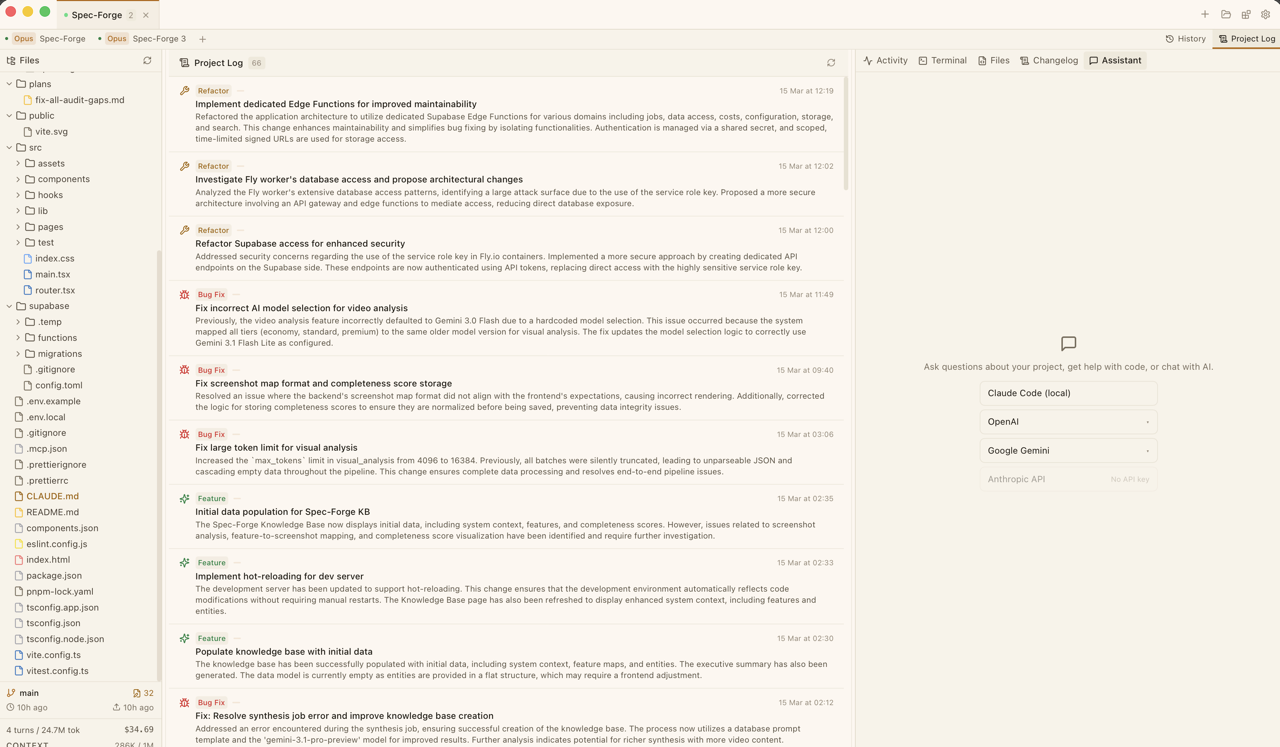
Reading Log Entries
Each entry in the Project Log shows:
- A category icon with color:
- Feature = green
- Fix = red
- Refactor = blue
- Other categories follow a similar color scheme
- A category badge (e.g. "Feature", "Fix", "Refactor")
- The session name that generated the entry — shown as an accent-colored badge so you can tell which session produced each entry
- A timestamp (e.g. "Mar 15, 2:30 PM")
- The headline in bold (rendered as Markdown)
- A description (rendered as Markdown)
- Files changed — small monospace badges showing file names, with full paths on hover
Entries are sorted newest-first.
Prerequisites
The Project Log requires the AI-Powered Changelog to be enabled. Without it, the Project Log will be empty.
If you see "No changelog entries yet", navigate to Settings > Changelog and enable auto-generate. You'll also need an API key for at least one AI provider.
Use Cases
Writing commit messages
Before committing, open the Project Log and scan recent entries. The headline + description format maps directly to conventional commit messages. Copy an entry with the clipboard button.
Daily standups
The Project Log gives you an instant answer to "what did I do yesterday?" — scan the timestamps to find entries from your last working session.
Onboarding collaborators
Share the Project Log with teammates to give them a narrative of how the project evolved. Each entry explains what changed and why, not just which files were touched.
Auditing AI-driven changes
Every entry is attributed to a specific session. Use the session name badges to trace which conversation produced which changes — useful when reviewing work done by Claude in Auto-Accept mode.
Reviewing before a release
Scan the Project Log for all entries since the last release tag. This gives you a ready-made changelog for release notes.
Tips
- The Project Log is read-only. It's populated automatically by the changelog generator. To change how entries are written, edit the system prompt in Settings > Changelog.
- Click the refresh button in the header to reload entries if you've just finished a session and don't see the latest entry yet.
- Use the session name badges to filter your attention — if you're only interested in what happened in your "Feature Auth" session, scan for that badge.
Related Articles
- AI-Powered Changelog — Enable and configure changelog generation
- Setting Up AI API Keys — Required for changelog functionality
- Sessions & Session Management — Managing the sessions that produce log entries
- Claude History — Resume previous sessions