
Sessions & Session Management
Create, manage, and switch between multiple Claude Code sessions in your project.
What Is a Session?
A session is one conversation with Claude Code. Each session runs its own Claude CLI process, maintains its own message history, and tracks its own token usage and cost. You can have multiple sessions open in the same project simultaneously — each with a separate tab.
The Session Sub-Tab Bar
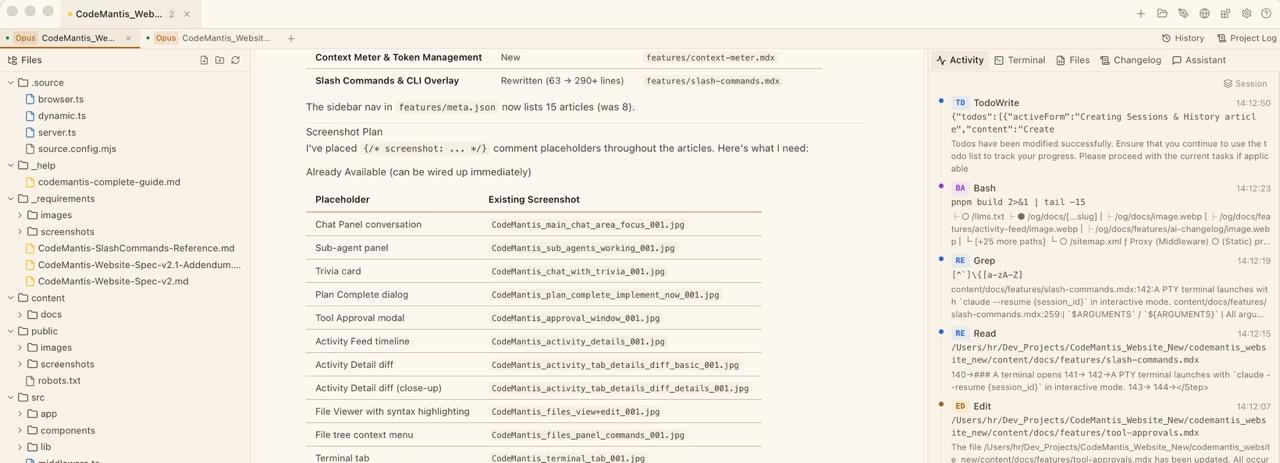
Directly below the title bar, a row of session tabs shows every active session for the current project. Each tab displays:
- A status dot — green when idle, yellow (pulsing) when Claude is working
- A model badge — a small pill showing the active model (e.g. "Sonnet", "Opus", "Haiku")
- The session name — defaults to "Session", editable by double-clicking
- A close button (x) — visible on hover or when the tab is active
On the right side of the sub-tab bar, two special tabs provide project-wide views:
- History (clock icon) — browse and resume closed sessions. See Claude History.
- Project Log (scroll icon) — view aggregated changelog entries. See Project Log.
Creating and Managing Sessions
Create a new session
Press Cmd + N or click the + button in the sub-tab bar. A new Claude Code process starts with a fresh conversation.
Switch between sessions
Click a session tab, or press Cmd + 1 through Cmd + 9 to jump to a session by position. Use Cmd + Shift + [ and Cmd + Shift + ] to navigate to the previous or next session.
Rename a session
Double-click the session name in the tab. An inline text input appears — type the new name and press Enter. Press Escape to cancel.
Close a session
Click the x button on a session tab or press Cmd + W. A confirmation dialog appears showing the session name and a warning that the CLI process will be stopped. Click Close to confirm.
Closed sessions are not lost. They appear in the Claude History tab where you can resume them with full conversation context intact.
When to Use Multiple Sessions
| Scenario | Approach |
|---|---|
| Research vs. implementation | Keep a "research" session for exploring the codebase and a "build" session for making changes |
| Parallel features | Separate sessions for independent features to keep context focused |
| Experimentation | Open a throwaway session to try an approach without cluttering your main conversation |
| Code review | Dedicate a session to reviewing and explaining code while another session builds |
For a detailed walkthrough of multi-session strategies, see Working with Multiple Sessions.
Agent Identity Is Preserved Across History and Recovery
Every session is bound to the coding agent it was created with — Claude Code, Codex, or OpenCode — and that identity stays with the session for its entire life. CodeMantis stores each session's agent alongside its saved conversation and treats that stored value as the source of truth whenever a session is listed in history, resumed, or recovered. You switch agents by starting a new session, never by converting an existing one.
Agent badges in history
Each card in the Claude History list carries a small agent badge so you can tell at a glance which CLI a closed session belongs to:
| Badge | Agent |
|---|---|
| CC | Claude Code |
| CX | Codex |
| OC | OpenCode |
Because the badge is read from the session's stored agent, it stays correct even after you quit and relaunch CodeMantis.
Resuming keeps the original agent
When you resume a closed session, CodeMantis re-spawns it on the agent it started on — Claude Code sessions through Claude's own resume, Codex sessions through their thread resume, and OpenCode sessions through the ACP session-load call. A Codex session always comes back on Codex, and an OpenCode session always comes back on OpenCode, regardless of what your current primary or per-task default is set to in Settings → Agents. There is no silent "fall back to Claude Code."
Surviving sleep and crashes
The same binding holds through interruptions:
- Sleep, wake, and App Nap — after your machine sleeps and wakes, or the OS suspends the app (macOS App Nap), CodeMantis reattaches its live sessions with each one's agent intact. A Codex session you left running before sleep is still a Codex session when it comes back.
- Crash recovery — if the app force-quits, the next launch replays the correct adapter for each session. Every session stays bound to the agent it was created with; there is no default-to-Claude fallback.
Per-task routing in Settings → Agents affects only new sessions — it never re-routes existing ones. To move an open session to a different agent, close it and start a new one. See Per-Task Agent Routing, Choosing Your Agent, and OpenCode.
Keyboard Shortcuts
| Shortcut | Action |
|---|---|
| Cmd + N | New session |
| Cmd + W | Close current session |
| Cmd + Shift + W | Close all sessions in the current project |
| Cmd + 1–9 | Switch to session by number |
| Cmd + Shift + [ | Previous session |
| Cmd + Shift + ] | Next session |
| Ctrl + Tab / Ctrl + Shift + Tab | Switch between project tabs |
| Cmd + F | Open the in-chat search bar (when a session is active) |
Tips
- Resume instead of restarting. Claude History preserves your conversation, so you can pick up exactly where you left off without re-explaining context.
- Check the Project Log for a bird's-eye view of everything built, fixed, or refactored — great for writing commit messages or status updates.
- Watch the status dot on session tabs for quick status. Green = idle. Yellow pulsing = Claude is actively working.