
Context Meter & Token Management
Monitor context window usage, track token costs per turn, and know when to start a new session.
Overview
Claude Code operates within a context window — a fixed budget of tokens that holds your conversation history, file contents, and tool outputs. As a session progresses, this window fills up. The Context Meter helps you monitor usage so you can take action before Claude starts losing track of earlier conversation details.
The Context Meter
The Context Meter sits at the bottom of the left sidebar, below the Git Status card. It shows two pieces of information at a glance.
Session Stats
When at least one turn has been completed, a stats line shows:
- Turn count + total tokens — e.g. "5 turns / 12.3K tok"
- Total cost — e.g. "$0.42" (only shown when cost is greater than zero)
Progress Bar
A thin horizontal bar fills from left to right as context is consumed:
| Usage | Color | Meaning |
|---|---|---|
| 0–70% | Accent (purple) | Normal — plenty of room |
| 70–90% | Yellow | Getting full — consider compacting or starting a new session |
| 90–100% | Red | Nearly full — Claude may start forgetting earlier messages |
The label above the bar shows the exact usage: e.g. "245K / 1M".
Token counts are formatted for readability: values over 1M show as "1.2M", values over 1,000 show as "245K", smaller values show as-is.
Turn Statistics
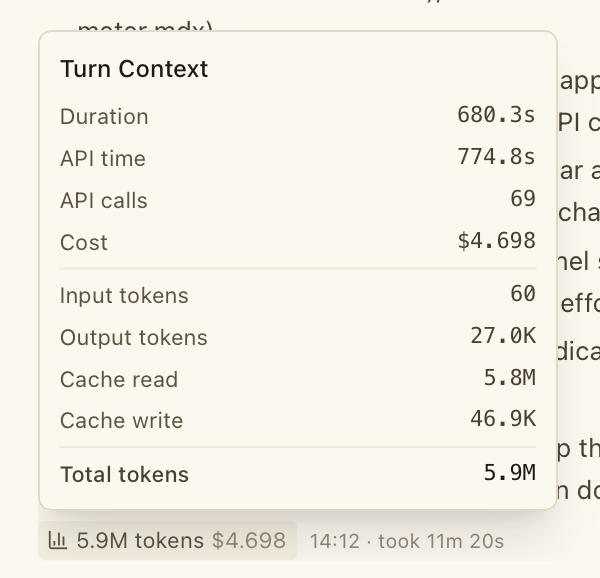
After each Claude response, a small clickable badge appears below the message showing the turn's total tokens and cost (e.g. "1.2K tokens $0.02"). Click it to open a detailed popover.

The popover breaks down:
| Field | Description |
|---|---|
| Duration | Total time for this turn |
| API time | Time spent in API calls only |
| API calls | Number of API calls in this turn |
| Cost | USD cost for this turn |
| Input tokens | Tokens in the prompt |
| Output tokens | Tokens in the response |
| Cache read | Tokens read from cache (reduces cost) |
| Cache write | Tokens written to cache |
| Total tokens | Sum of all token types |
Click outside the popover to dismiss it.
Session Status Bar
The Session Status Bar at the bottom of the chat panel provides a persistent overview of the current session. On the right side, it shows:
- Model name — e.g. "Sonnet"
- Turn count — total turns in the session
- Rate limit utilization — shown as "RL XX%" when usage exceeds 50%, turns yellow above 80%
- Total session tokens and cost
- Context usage percentage — "ctx XX%", yellow at 70%, red at 90%

Managing Context
When to Compact
Use the /compact command when context usage reaches 70–80%. This tells Claude to summarize the conversation history, freeing up context space without losing the gist of what was discussed. You can continue working in the same session afterward.
When to Start a New Session
Start a new session (Cmd + N) when:
- Context exceeds 80% and compacting has already been used
- You're switching to a completely different task
- Claude seems to be "forgetting" instructions from earlier in the conversation
Your previous session isn't lost. You can always resume it from the History tab if you need to revisit the conversation.
What Consumes Context
The biggest consumers of context window space:
- Large file reads — reading entire large files takes significant context
- Long conversations — every message (yours and Claude's) stays in context
- Verbose tool outputs — bash commands that produce long output
- Multiple code blocks — Claude's detailed code responses add up
Configuration
| Setting | Location | Description |
|---|---|---|
| Default context window | Settings > General | Fallback context size: 200K or 1M. Used when the CLI doesn't report the actual value. |
Tips
- Glance at the progress bar color for instant status. Purple = fine. Yellow = pay attention. Red = take action.
- Click the token badge below any response to understand which turns are consuming the most context — large code outputs are usually the biggest contributors.
- Use
/compactbefore you hit the red zone. It's much more effective at 70% than at 95%. - Multiple focused sessions beat one long session. Each session starts with a fresh context window, so splitting tasks across sessions often produces better results.