
Claude History
Browse and resume previously closed Claude Code sessions from the History tab.
Overview
When you close a session in CodeMantis, the conversation doesn't disappear. It's preserved on Claude's servers and can be reopened later from the History tab — with the full message history intact. This means you can close a session at the end of the day and pick up exactly where you left off the next morning.
Opening History
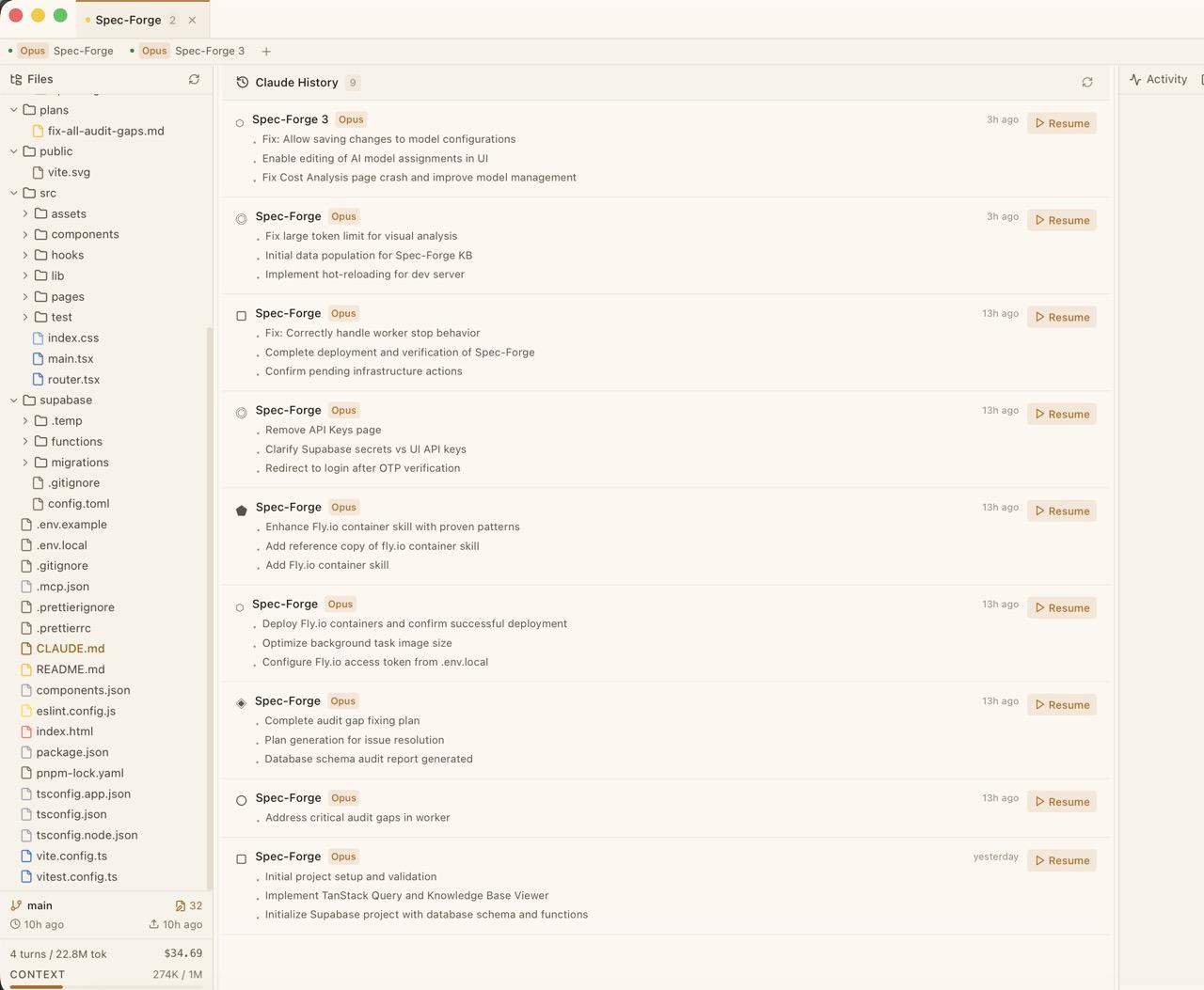
Click the History tab (clock icon) on the right side of the session sub-tab bar. The History view replaces the chat panel and shows a list of session cards for the current project.
Reading Session Cards
Each card in the History view displays:
- A decorative geometric icon (hexagon, diamond, triangle) — unique per session for quick visual identification
- The session name in bold and a model badge (e.g. "Sonnet", "Opus")
- A relative timestamp — "2h ago", "yesterday", "Mar 15"
- Recent headlines — a bulleted list of the most recent conversation topics from that session
- A Resume button
The headlines give you a quick preview of what the session was about without having to open it.
Resuming a Session
Click Resume on any session card. The button shows a loading spinner while reconnecting to Claude's servers. Once loaded, the session reopens as a new tab in the sub-tab bar with its full conversation history restored.
You can continue the conversation exactly where you left off — Claude retains all context from previous turns, including file knowledge, decisions made, and work completed.
When Sessions Expire
Sessions are preserved on Claude's servers, but they can expire after extended periods of inactivity. If you try to resume an expired session, a toast notification appears:
"Session no longer available — try creating a new session."
There is no way to recover an expired session. For important work, consider using the AI-Powered Changelog to automatically document what happened in each session.
History States
| State | What You See |
|---|---|
| Loading | "Loading session history..." with a spinner |
| Empty | "No closed sessions for this project" with a hint that closed sessions will appear here |
| Populated | List of session cards with Resume buttons |
| Resuming | The Resume button shows a spinner and is disabled |
Click the refresh button (circular arrow icon) in the History header to reload the list from the Claude CLI.
History is project-scoped. Each project has its own independent history. Switching projects shows only the sessions for that project. To resume a session from a project that isn't open yet, use the Resume Session tab in the Project Picker — it lists the 20 most recent sessions across all projects.
Tips
- Check History before creating a new session. You may have a previous session with relevant context that's faster to resume than to re-explain.
- Rename sessions before closing them. A descriptive name like "Auth Feature" or "Bug Fix #42" makes the History list much easier to scan later.
- Use the headlines to quickly identify which session had the work you're looking for.
- Enable the changelog so that even if a session expires, you still have a record of what was accomplished.
Related Articles
- Sessions & Session Management — Creating, switching, and closing sessions
- Project Log — Unified changelog across all sessions
- Working with Multiple Sessions — Strategies for organizing parallel work