
Activity Feed
A real-time timeline of every tool operation Claude performs — file reads, writes, edits, commands, and more.
Overview
While the Chat Panel shows your conversation with Claude, the Activity Feed shows what Claude is actually doing. Every file read, write, edit, bash command, search query, agent spawn, and MCP call appears as a timestamped entry in a real-time timeline.
The Activity Feed occupies the Activity tab in the right panel. Press Cmd + Shift + A to focus it.
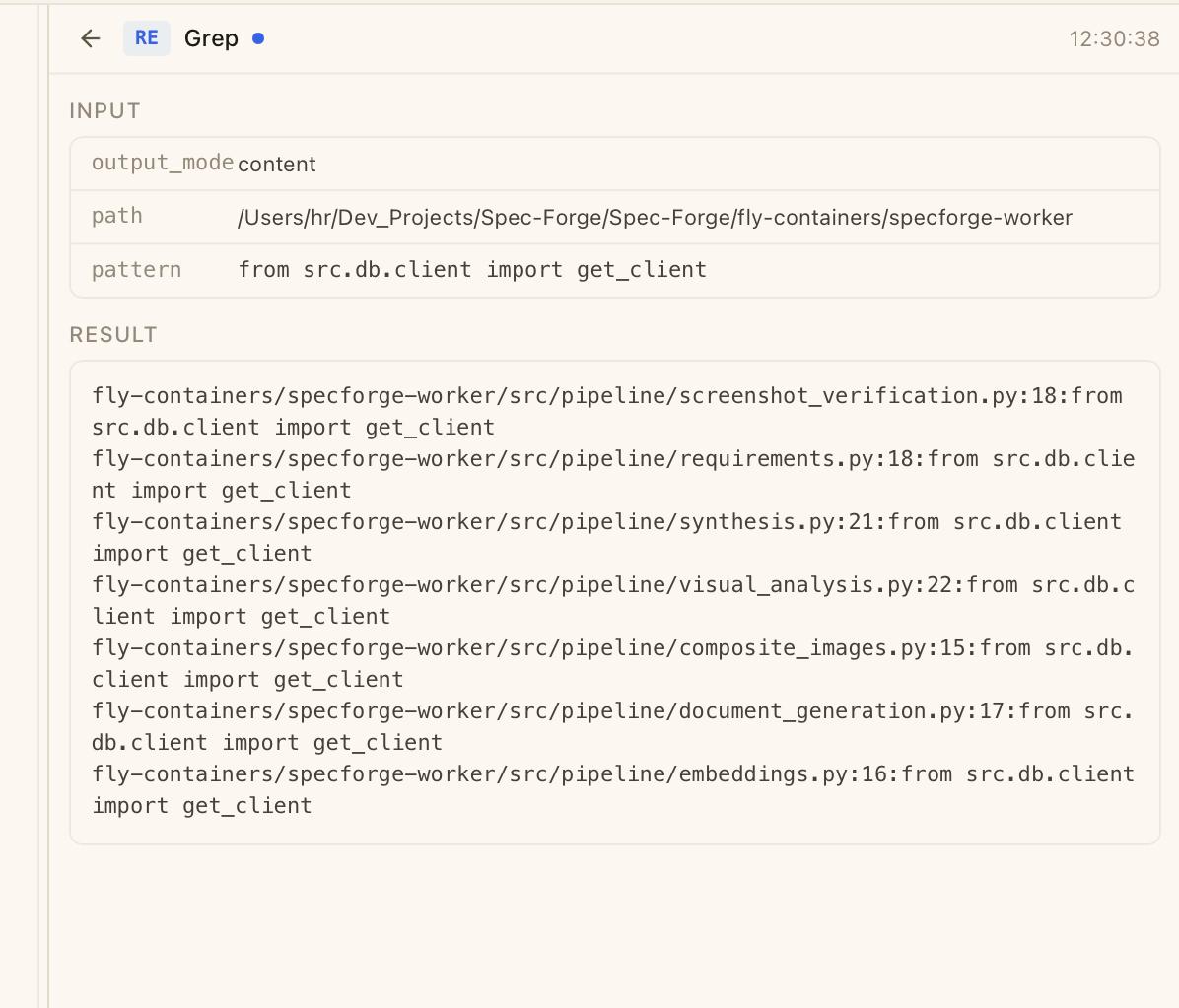
Reading the Timeline
Each entry in the feed shows:
- A timeline dot on the left edge — pulses when the operation is still running, static when complete
- A tool badge — a compact color-coded label identifying the operation type
- The tool name in bold
- An approval status badge (if applicable) — APPROVED (green), DENIED (red), or PENDING (yellow)
- A timestamp on the right
- An input summary — the file path, command, regex pattern, or agent description (truncated to 3 lines)
- A result preview — the operation's output (truncated to 3 lines). Errors show in red with an "Error:" prefix.
Tool Badge Reference
| Badge | Operation Type | Color |
|---|---|---|
| RE | Read file | Blue |
| WR | Write file | Green |
| ED | Edit file | Yellow |
| BA | Bash command | Purple |
| SR | Search / Grep / Glob | Purple |
| AG | Agent (sub-agent) | Green |
| TD | Task | Blue |
| Q? | User Question | Accent |
| MC | MCP tool call | Purple |
| EX | Other / External | Dim |
Session vs. Project Scope
A scope toggle in the top-right corner of the Activity tab switches between two views:
- Session — shows activity only for the currently active session
- Project — shows merged activity from all sessions in the project, including assistant tabs. Each entry gets a session label badge so you can tell which session generated it.
Switch to Project scope when you want to see what happened across all sessions — useful when reviewing work done in a session you weren't watching.
Activity Detail Panel
Click any entry in the feed to open the full-detail view. This replaces the feed with a comprehensive breakdown of that single operation.
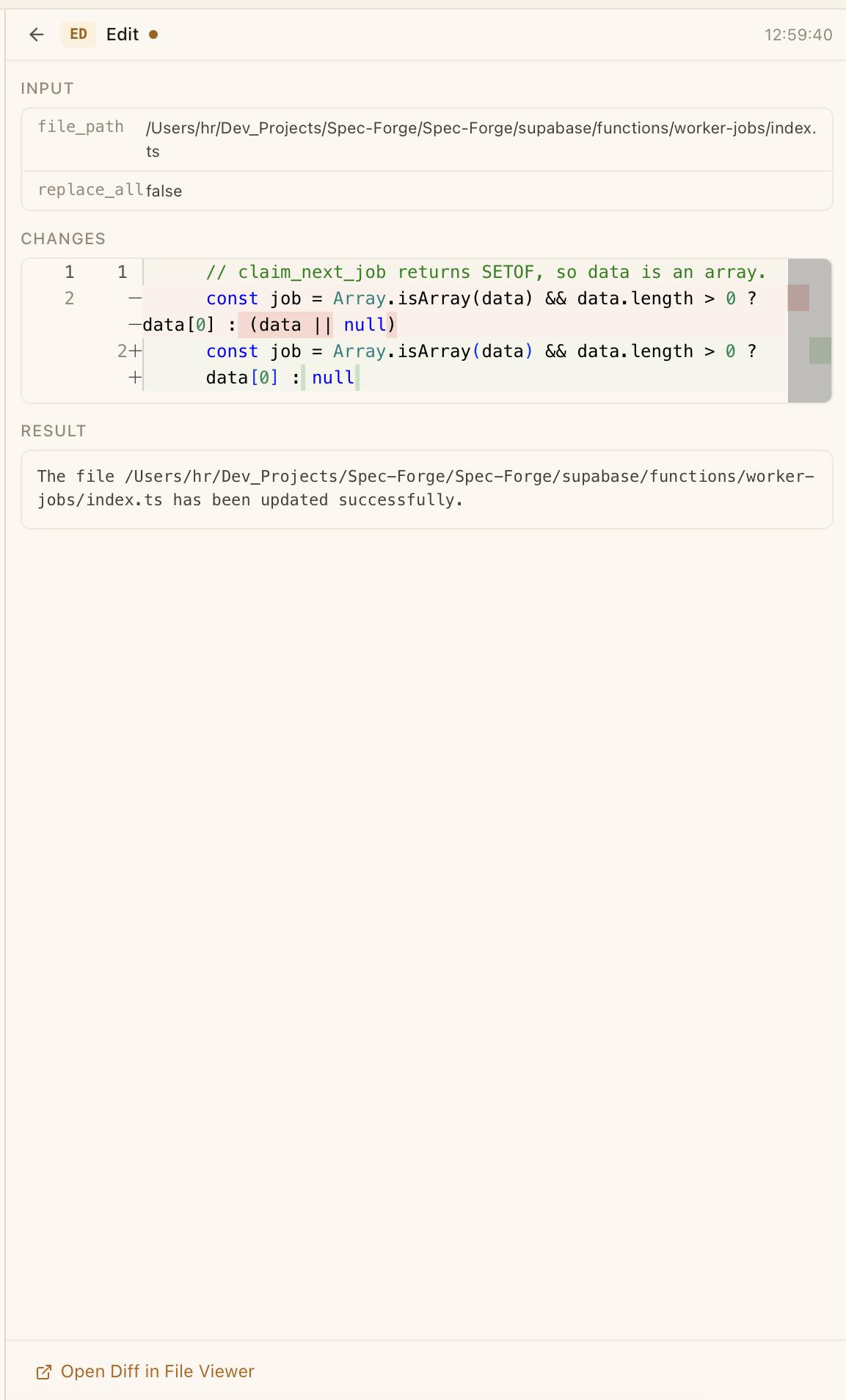
The detail panel shows:
- Header — back button, tool badge, tool name, status dot, duration, and timestamp
- Sub-agent attribution — if the operation was performed by a sub-agent, a green bar shows which agent
- Input section — a table of all input fields (
file_path,command,pattern, etc.) with monospace values - Changes section (Edit operations only) — a Monaco diff editor showing old and new content side-by-side with syntax highlighting
- Written Content section (Write operations only) — the full file content in a scrollable monospace area
- Result section — the full tool output
- Error section — error messages in red (if the operation failed)
At the bottom, an "Open in File Viewer" or "Open Diff in File Viewer" button lets you jump directly to the file in the Files tab.
Press Escape or click the back arrow to return to the feed.
Claude Code Reasoning
When Claude is reasoning between tool calls (the "extended thinking" stream), the Activity Feed pins a Claude Code Reasoning card at the top with a violet "Reasoning" badge. The card streams Claude's chain-of-thought in monospace as it arrives — so you can see why the next tool call is about to happen, before it happens.
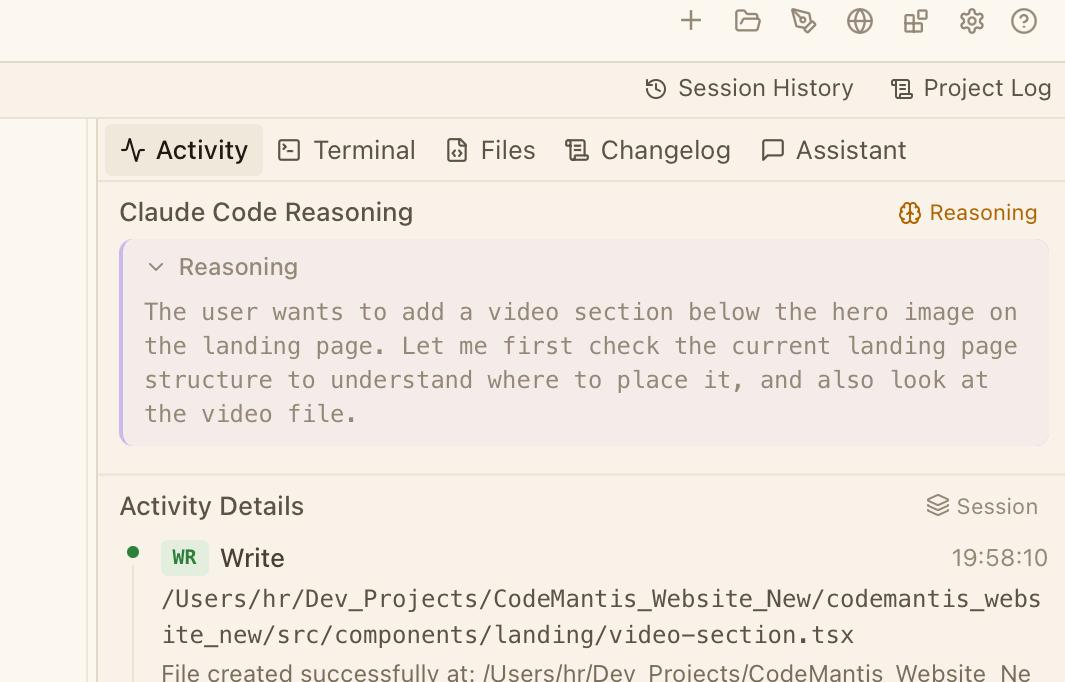
The card stays expanded by default and collapses with the chevron arrow. It is replaced when Claude starts a new round of reasoning, so the most recent thought process is always the one shown. Reasoning is only emitted by models that support extended thinking (e.g. Sonnet, Opus) at a non-zero thinking effort level.
Sub-Agent Tracking
When Claude launches parallel sub-agents, their tool operations appear in the Activity Feed with a green attribution badge showing which agent performed the operation and its description. Agent entries also show badges for total tool uses and total tokens consumed.
Preview Console Entries
Console errors and warnings from the Preview Browser appear in the Activity Feed with a special "Send to chat" button. Click it to forward the console output directly into the main chat input — useful for asking Claude to fix runtime errors.
Activity Summary Deep-Links
The Activity tab can also present a Summary timeline — condensed, turn-by-turn cards describing what each work phase accomplished. Each card links back to its origin in the Chat Panel.
Every card carries a numbered marker on its rail. When CodeMantis can resolve the chat line that produced the card, that marker becomes a button:
- Hover it to preview the prompt that led there — "Jump to the prompt that led here: …" for a normal turn, or "Jump to the session line that produced this: …" for operation-driven turns such as Self-Drive.
- Click it to scroll the conversation to that exact message and briefly highlight it.
Cards whose origin can't be resolved show a plain, non-clickable marker instead.
Keyboard Shortcuts
| Shortcut | Action |
|---|---|
| Cmd + Shift + A | Focus Activity Feed |
| Escape | Close Activity Detail Panel (back to feed) |
Tips
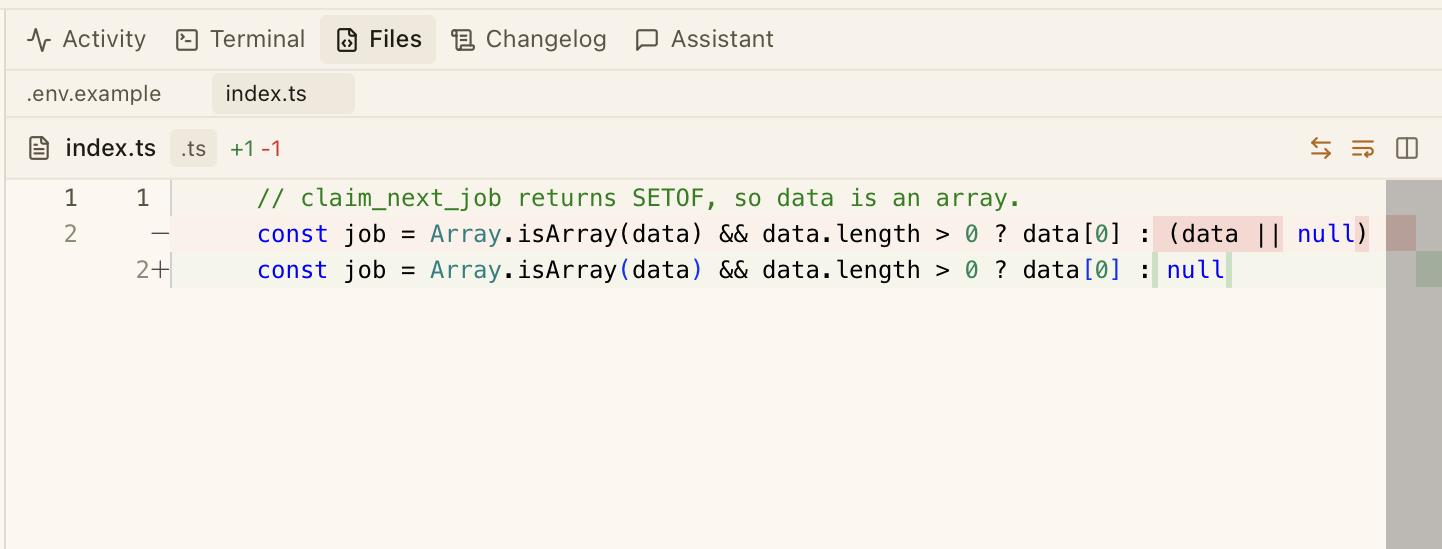
- Click Edit entries to see the exact diff in a Monaco editor — this is the fastest way to review what Claude changed in a file.
- Switch to Project scope to see activity across all sessions. This is especially useful when you come back to a project and want to understand what happened.
- The "Open in File Viewer" button in the detail panel lets you jump straight to the file Claude just edited, with the diff already loaded.
- Activity entries are capped at 500 per session to prevent memory growth.
Tool Approvals
Review and approve a coding agent's actions before they happen — with queue management, batch approval, and per-tool auto-allow. Applies to Claude Code; Codex uses a different policy model.
File Viewer & Editor
Browse, edit, and diff files with the built-in Monaco editor — complete with syntax highlighting and side-by-side comparisons.