
SpecWriter: Writing Better Specs
Use SpecWriter to create implementation-ready specification documents and verification checklists for whichever coding agent you've routed it to.
The 30% Problem
Modern coding agents are remarkably capable, but when you hand them a vague prompt, they typically nail about 70% of what you want. The remaining 30% — edge cases, validation rules, error states, specific UI behaviors — gets lost in translation. You end up spending time correcting and re-prompting, which defeats the purpose of using an AI coding agent.
SpecWriter solves this by helping you think through your feature before your agent starts writing code. The result is a structured specification document that leaves far less room for ambiguity. When you click Implement, the spec is handed to whichever agent you've configured for spec_writer in Settings › Agents › Per-task Defaults — Claude Code by default, or Codex if you've routed it that way.
Opening SpecWriter
There are two ways to launch SpecWriter:
- Click the pencil button in the toolbar
- Use the keyboard shortcut Cmd + Shift + B
This opens a slide-over panel (covering roughly 80% of the screen width) where the SpecWriter AI guides you through defining your feature or change.
Choosing a Mode
When SpecWriter opens, you pick one of two modes:
- New Application — Design a new app from scratch. SpecWriter asks about your target stack, user flows, data model, and requirements without assuming any existing codebase.
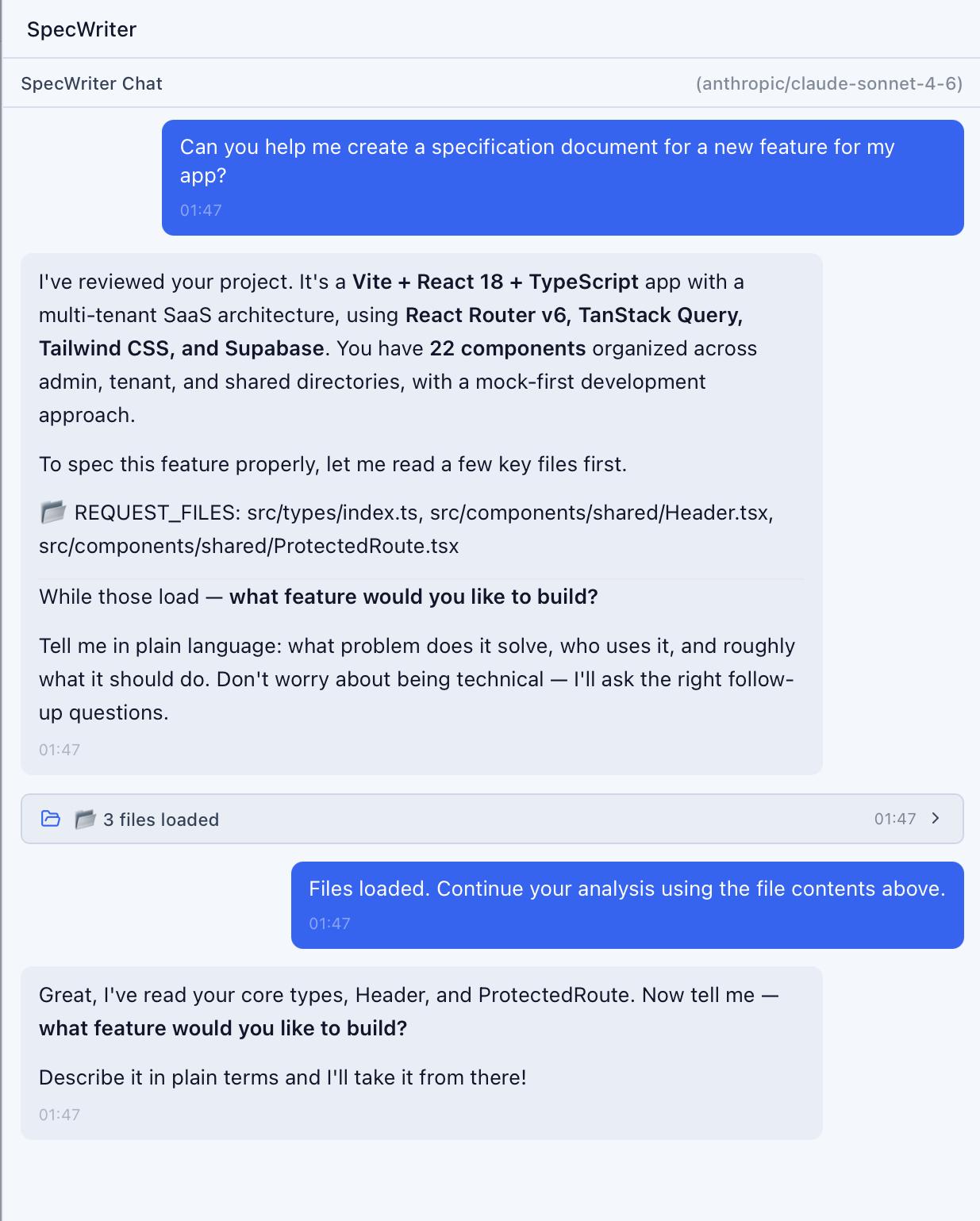
- Feature (existing project) — Add a feature to your current project. SpecWriter first analyzes your codebase (scanning CLAUDE.md, routes, components, and config files) and then asks context-aware questions. A badge in the header shows the scanning status: "scanning...", "loaded", or "error".
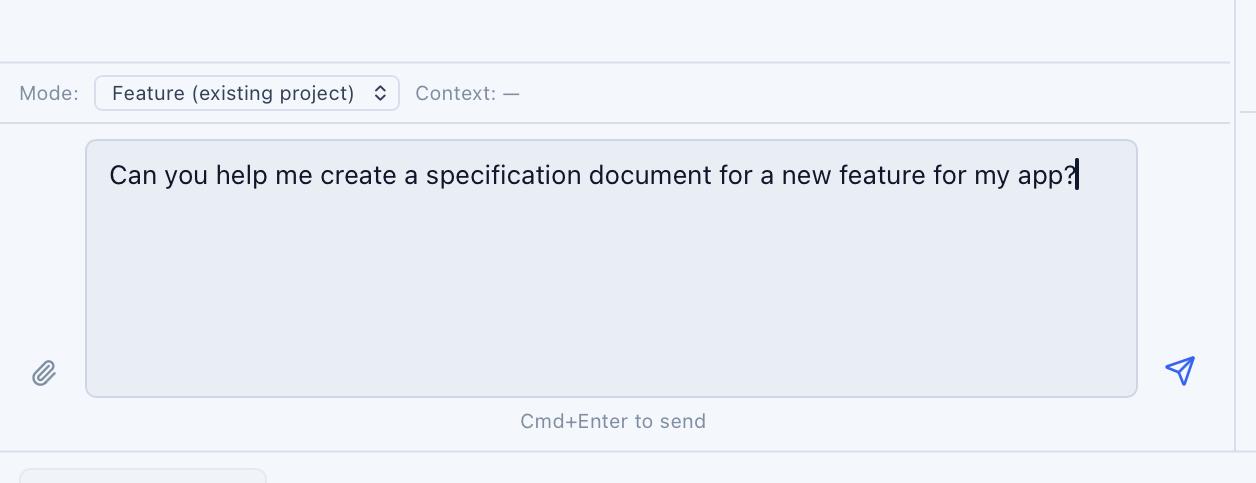
Choose a mode, optionally pick a specific AI model from the dropdown (requires an API key for the selected provider), and type your initial description.
For a deep dive on how Feature mode uses your codebase context, see SpecWriter: Feature Mode.
The Conversation Flow
SpecWriter doesn't hand you a blank document. It runs an interactive conversation that walks you through key decisions:
- Intent — What are you building and why?
- Scope — What's included and, just as importantly, what's excluded?
- Behavior — How should the feature work in normal conditions?
- Edge Cases — What happens when things go wrong or inputs are unexpected?
- Constraints — Are there performance, accessibility, or compatibility requirements?
Option Buttons
SpecWriter presents follow-up questions with selectable option buttons — not just a free-text input:
- When there are 4 or more options, checkboxes appear so you can multi-select. A "Send N selected" button confirms your choices.
- When there are fewer options, clicking one immediately sends it as your answer. Right-click to multi-select instead.
You can also type a free-text answer at any time if none of the options fit.
Generating the Spec
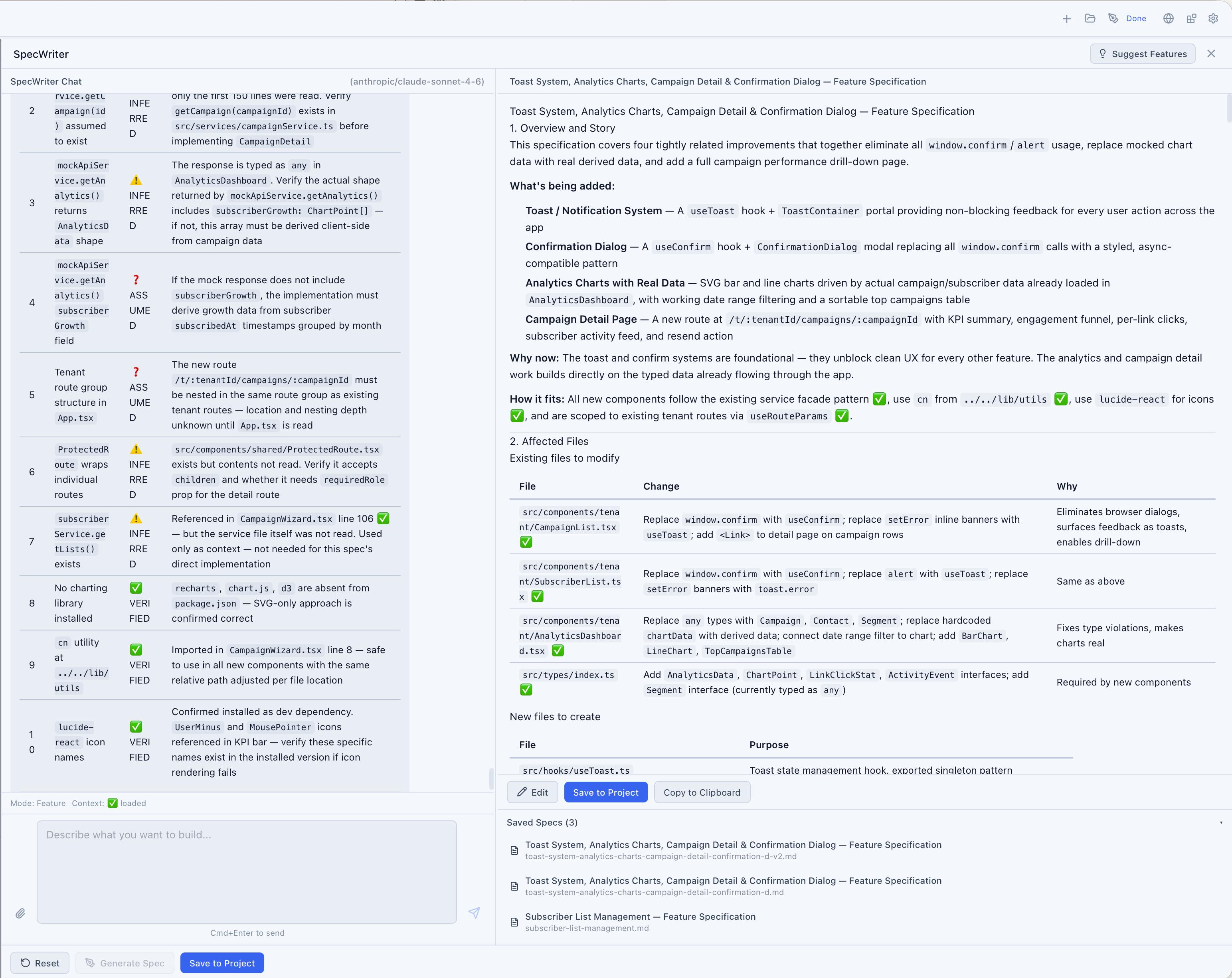
Once SpecWriter has gathered enough information, a Generate Spec button appears. Click it to trigger spec generation. The AI writes a structured specification document that streams into a preview pane in real-time.
The preview pane supports:
- Edit mode — raw Markdown text that you can modify directly
- Preview mode — rendered Markdown view (toggle with the Edit/Preview button)
Saving and Using Specs
Save to project
Click Save to Project. A dialog asks for a filename (placeholder: "my-spec.md"). The spec saves to docs/specs/your-filename.md in your project directory.
If a file with that name already exists, an amber warning appears with two options: Overwrite or Save as your-filename-v2.md.
Use the spec
After saving, an integration section appears with three actions:
- Copy the CLAUDE.md instruction:
Read docs/specs/my-feature.md for implementation - Send to Chat — inserts the spec reference into the chat input
- Implement (primary button) — sends a full implementation request directly to your active Claude Code session
Managing Saved Specs
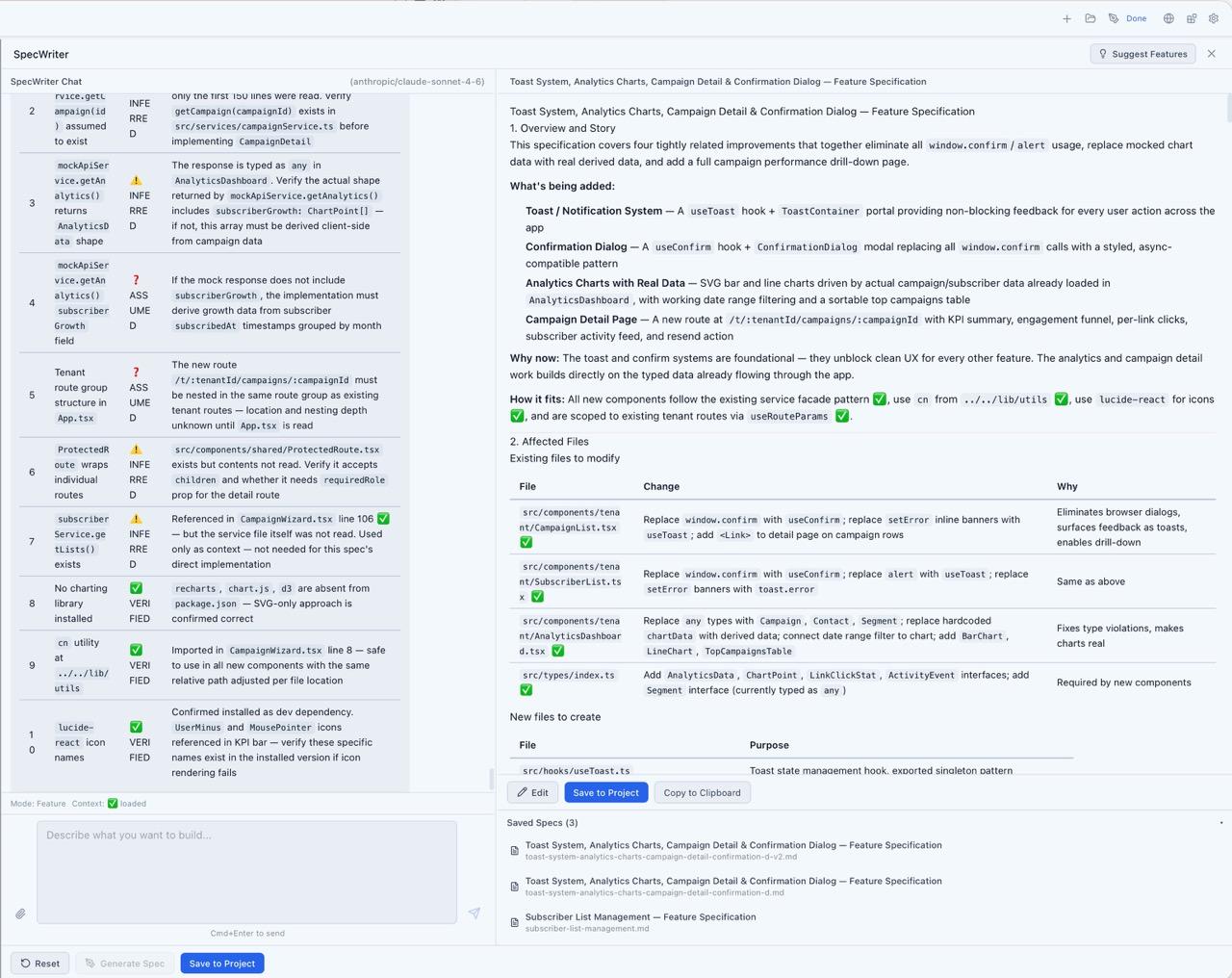
A collapsible Saved Specs panel shows all specs in the project. Each spec displays its title, filename, and modification date. Hover to reveal:
- Load into conversation — reopens the spec in SpecWriter for editing
- Delete — removes the spec file (with confirmation)
Verification Checklists
Each spec includes an auto-generated verification checklist at the end. This is a list of concrete, testable assertions that describe what "done" looks like:
- [ ] Form validates email format before submission
- [ ] Empty fields show inline error messages
- [ ] Submit button is disabled while the request is in flight
When you paste a SpecWriter document into Claude Code, the verification checklist acts as a built-in acceptance test — Claude Code can reference it to self-check its own output before presenting the result.
Verification Audit
After saving a spec, a Generate Audit button appears. Click it to create a companion verification document. The AI cross-references the spec against itself to catch:
- Inconsistencies between sections
- Missing edge cases
- Ambiguous requirements that could be interpreted multiple ways
The audit saves alongside the spec as a companion file (e.g. docs/specs/my-feature.audit.md). Both documents appear as tabs in the SpecWriter panel — Specification and Verification Audit — so you can switch between them.
Settings
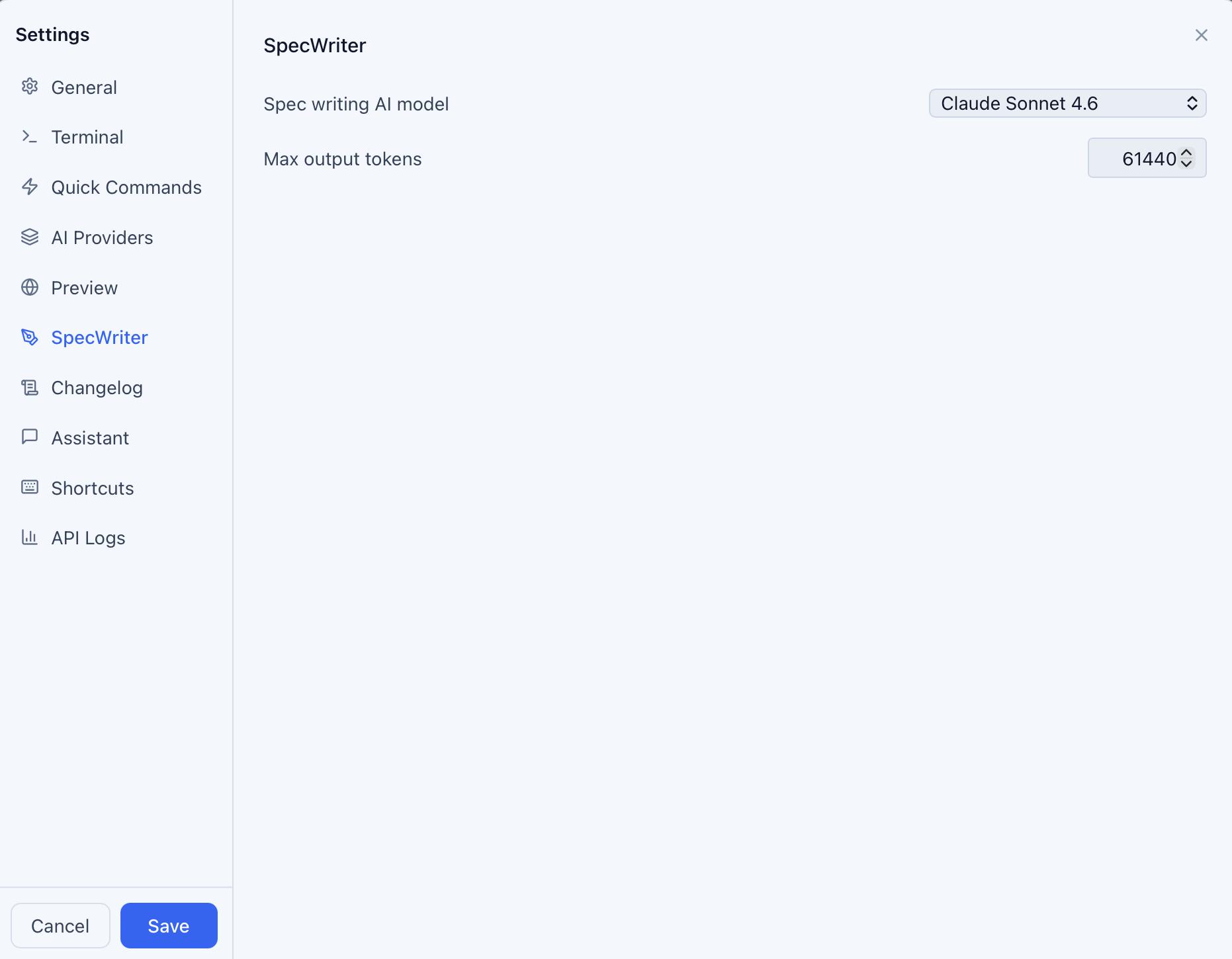
Configure SpecWriter defaults in Settings > SpecWriter:
- Default mode — Guided (interactive Q&A) or Freeform (write directly)
- Auto-save — Automatically save specs after generation
Implementation Guide
For larger features that span multiple files and layers, clicking Implement can also generate a structured Implementation Guide — a multi-session plan that breaks the spec into ordered work units.
The guide creates session cards, each with:
- A clear scope describing what to build
- Files to read for context and files to create or modify
- A Copy Prompt button with a pre-built prompt for that session
- A Send to Chat button to start the session directly
- A verification checklist specific to that session's work
A progress bar tracks completion across all sessions. Each session includes a Verify for me button that lets Claude automatically check the verification items, and a Mark Session Complete button that activates when all checks pass.
This approach prevents context window overload and ensures each unit of work is verified before moving on to the next.
For a complete walkthrough of the Implementation Guide, see Implementation Guide.
How Your Agent Uses Specs
When you paste a SpecWriter document into your active session (or click Implement), the structured format gives the agent clear, unambiguous instructions. The numbered sections, explicit scope boundaries, and verification checklist reduce ambiguity dramatically. This works the same way whether the agent is Claude Code or Codex.
The net effect is fewer revision cycles and more complete implementations on the first pass.
Tips
- Start with Feature mode if you're adding to an existing project. The codebase analysis helps SpecWriter ask more relevant questions.
- Use the verification checklist as your review guide after Claude Code implements the feature.
- Generate an audit for complex specs — it catches inconsistencies you might miss.
- Save specs to version control. They serve as living documentation of what was built and why.
Related Articles
- SpecWriter: Feature Mode — How Feature mode analyzes your codebase
- Implementation Guide — Turn specs into structured multi-session plans
- Setting Up AI API Keys — Configure API keys for SpecWriter's AI providers
- Building a Feature from Scratch — End-to-end guide using SpecWriter in a full workflow