
Building a Feature from Scratch
End-to-end guide: write a spec, plan the approach, implement, review changes, and generate a changelog entry.
Overview
This guide walks you through the complete cycle of building a feature in CodeMantis — from initial idea to committed code. You'll use SpecWriter, Plan mode, tool approvals, the Activity Feed, and the changelog along the way.
The Workflow at a Glance
- Write the spec with SpecWriter
- Generate an Implementation Guide
- Implement manually — or let Self-Drive automate it
- Review changes in the Activity Feed
- Verify against the spec's checklist
- Generate a changelog entry
- Commit
Step 1: Write the Spec
Open SpecWriter by clicking the pencil icon or pressing Cmd + Shift + B.
Choose a mode
Select Feature (existing project) if you're adding to an existing codebase, or New Application for a greenfield project. Feature mode analyzes your codebase first for context-aware questions.
Describe your feature
Type a description of what you want to build. Be specific about the user-facing behavior.
Answer follow-up questions
SpecWriter asks clarifying questions with selectable option buttons. Answer honestly — the more detail here, the better the spec.
Generate and save
Click Generate Spec when the conversation reaches "ready to write" status. Review the output, then click Save to Project.
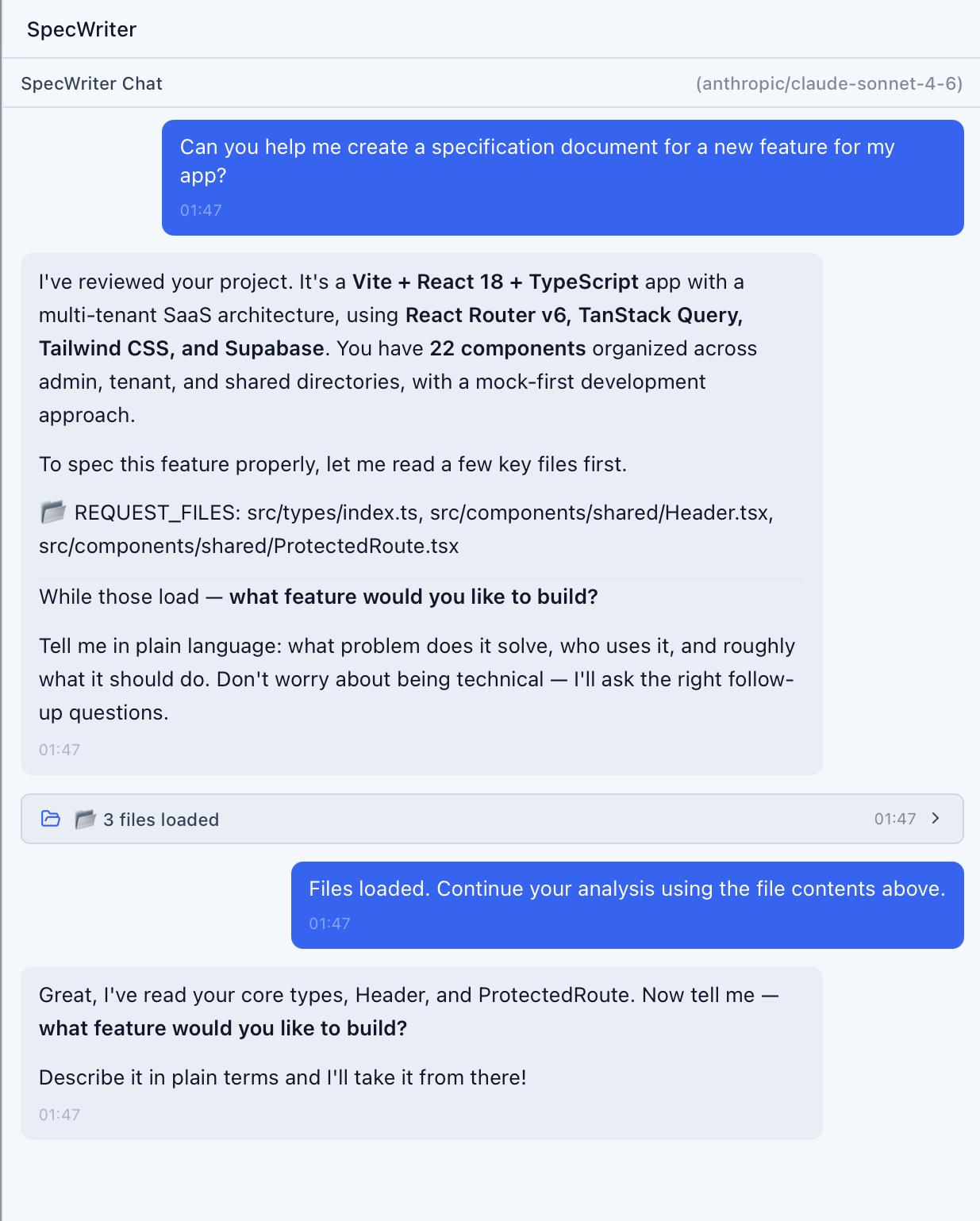
For complex features, click Generate Audit after saving to create a verification document that cross-references the spec for inconsistencies.
Step 2: Generate an Implementation Guide
For multi-session features, click Implement in the SpecWriter integration section to generate an Implementation Guide. The AI analyzes your spec and produces a structured plan — breaking the work into ordered sessions, each with a clear scope, file lists, pre-built prompts, and a verification checklist.
Review the guide in the right panel. Each session card shows exactly what to build and how to verify it.
For simple, single-session features, you can skip the guide and send the spec directly to Claude Code using the Send to Chat button.
Step 3: Implement — Manually or with Self-Drive
You have two paths:
Option A: Self-Drive (Recommended for 3+ sessions)
Click Start Self-Drive at the top of the Guide panel. Self-Drive sends each session's prompt to Claude Code, verifies the output, fixes errors, runs build checks and tests, and advances to the next session — all automatically.
Watch Decision Cards appear in the Chat Panel showing each orchestrator decision. If Self-Drive encounters an issue it can't resolve, it pauses and explains what went wrong.
For details, see Self-Drive: Autonomous Implementation.
Option B: Manual implementation
Work through sessions one by one:
- Use Copy Prompt or Send to Chat to start each session with the right context
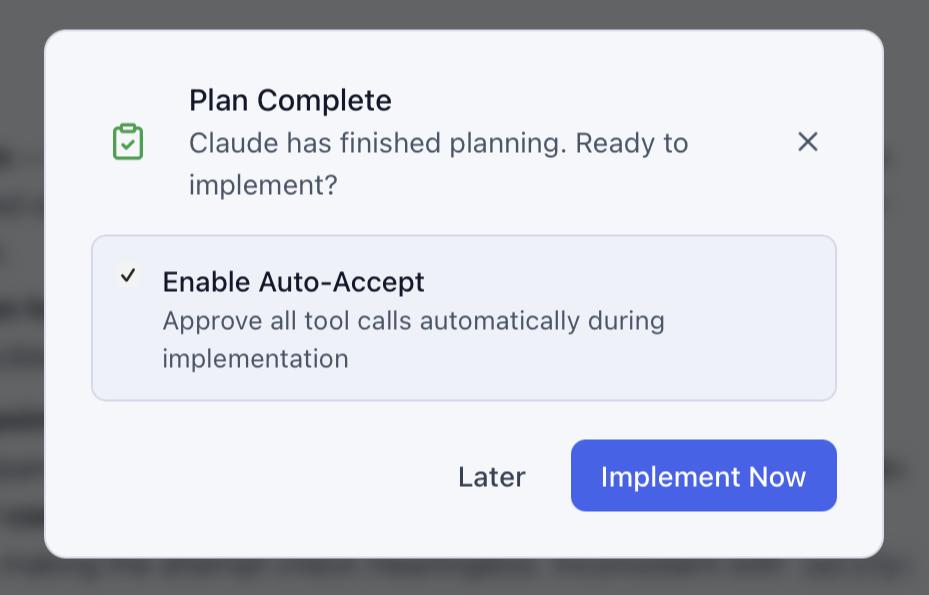
- Switch to Auto-Accept mode if you trust the plan, or stay in Normal mode to approve each change
- Watch the Activity Feed to monitor progress
- Check the verification items and Mark Session Complete before moving on
Step 4: Review with the Activity Feed
Switch to the Activity tab in the right panel. Every file read, edit, write, and command appears as a timestamped entry.
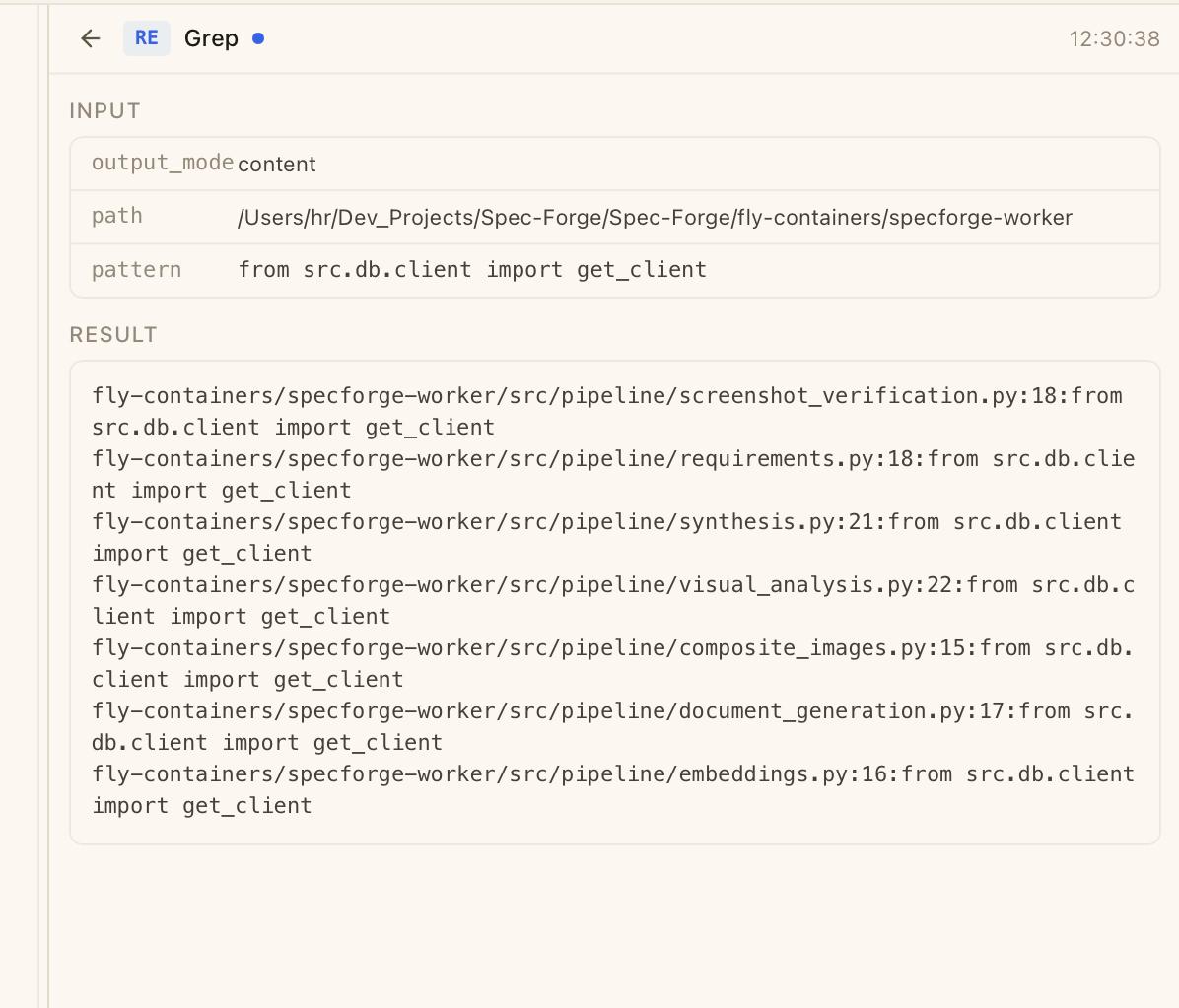
Click any Edit entry to see the exact diff in a Monaco editor — added lines in green, removed lines in red. Click Open in File Viewer to inspect the full file.
Step 5: Verify Against the Checklist
Open the spec's verification checklist (saved alongside the spec in docs/specs/). Walk through each assertion:
- [ ] Form validates email format before submission
- [ ] Empty fields show inline error messages
- [ ] Submit button is disabled while the request is in flight
You can ask Claude to self-verify:
Read the verification checklist at docs/specs/my-feature.audit.md
and check each item against the code you just wrote.
Report any items that are not fully implemented.
Step 6: Generate a Changelog Entry
If the AI-Powered Changelog is enabled, an entry is generated automatically after each coding turn. Open the Changelog tab in the right panel to see it.
The entry summarizes what was built, which files changed, and the category (Feature, Fix, Refactor). This entry also appears in the Project Log — a unified timeline across all sessions.
Step 7: Commit
Open the integrated Terminal (Cmd + Shift + T) and review the changes:
- Use the
/diffslash command to see a git-style diff of all session changes - Or run
git diffin the terminal
Use the changelog entry as the basis for your commit message. The headline + description format maps directly to conventional commits.
Tips
- SpecWriter first, always. Even a 5-minute spec dramatically reduces revision cycles.
- Use the Implementation Guide for multi-session features. It keeps each session focused and verified.
- Try Self-Drive for guides with 3+ sessions. It automates the repetitive prompt-verify-fix cycle and catches errors automatically.
- Use the Activity Feed for review, not the chat. The Activity Feed shows exactly what changed; the chat shows the conversation about it.
- The verification checklist is your acceptance test. Don't skip it — ask Claude to self-check, or let Self-Drive do it for you.
- Multiple focused sessions beat one long session. If your context gets full (check the context meter), start a new session.
Related Articles
- SpecWriter — Write implementation-ready specifications
- Implementation Guide — Turn specs into structured session plans
- Self-Drive — Automate the entire Implementation Guide
- Session Modes — Normal, Auto-Accept, and Plan modes
- Activity Feed — Monitor Claude's tool operations
- AI-Powered Changelog — Automatic session summaries