
Debugging with Claude Code
Capture errors, share context with Claude, monitor fixes in the Activity Feed, and verify the result.
Overview
Debugging with Claude Code follows a simple loop: detect the error, share context, let Claude investigate and fix, then verify the result. CodeMantis gives you several tools to make each step efficient — the Preview Browser for visual bugs, the Activity Feed for monitoring, and the terminal for running tests.
Step 1: Detect the Error
Errors surface in different places depending on the type:
| Error Type | Where You See It |
|---|---|
| Runtime error | Preview Browser console (red error entries) |
| Build error | Terminal output (red text) |
| Visual bug | Preview Browser viewport |
| Test failure | Terminal output after running tests |
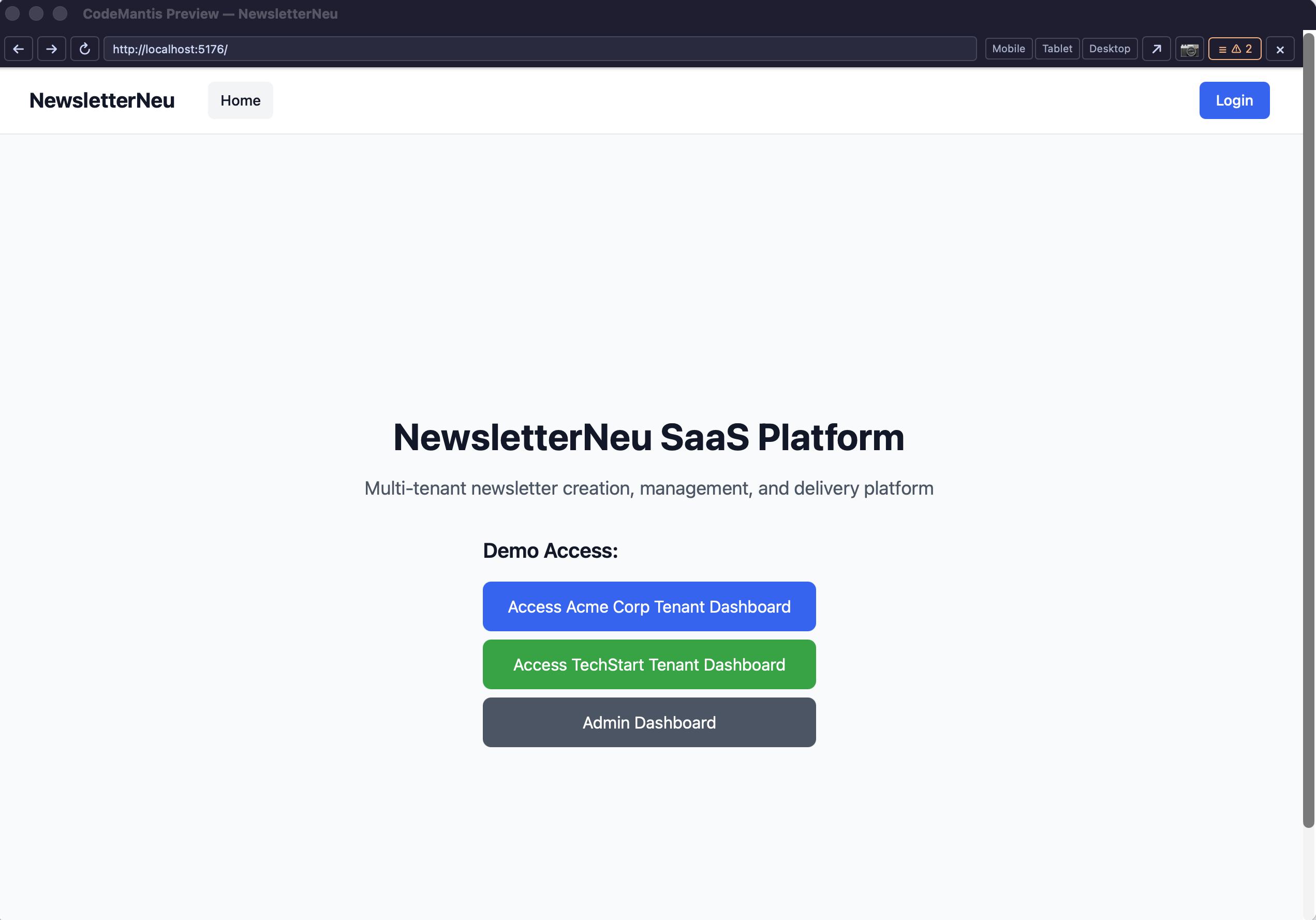
The Preview Browser captures console errors automatically and surfaces them as toast notifications.
Step 2: Share Context with Claude
The more context you give Claude, the faster it can diagnose the issue. Use these methods:
Paste error text
Copy the error message or stack trace and paste it directly into the chat input.
Send console errors to chat
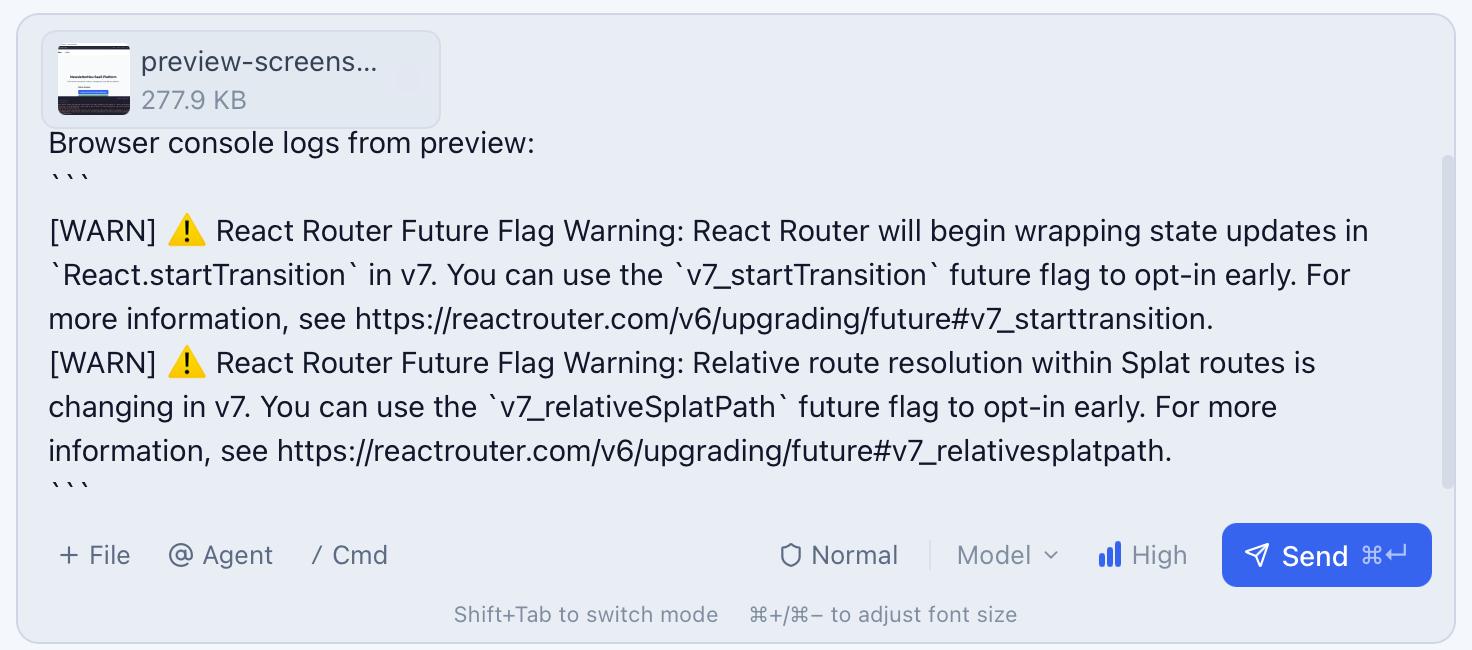
In the Preview Browser, console errors appear in the Activity Feed with a Send to chat button. Click it to forward the error output directly into the chat input.
Screenshot the Preview Browser
Click the camera button in the title bar to capture a screenshot of the Preview Browser and attach it to the chat. This is ideal for visual bugs where the error is what you see, not a console message.
Attach files
Right-click a file in the sidebar and select Add to Main Chat to attach it. This gives Claude immediate context about relevant source code without having to read the entire project.
Step 3: Ask Claude to Debug
Describe the problem clearly. Good debugging prompts include:
- What you expected: "The login form should redirect to /dashboard after submitting"
- What happened instead: "It stays on the login page with no error message"
- Any error text: paste the full error or attach a screenshot
Example prompt:
I'm getting this error in the console when I click the submit button:
TypeError: Cannot read properties of undefined (reading 'email')

The form is in src/app/auth/login/page.tsx. Fix this bug.
Use Normal mode for careful debugging — you'll review each change before it's applied. Use Auto-Accept for quick fixes where you trust Claude's approach.
Step 4: Monitor the Activity Feed
As Claude investigates, watch the Activity Feed in the right panel. You'll see:
- Read operations as Claude examines relevant files
- Edit operations as Claude makes fixes — click these to see the exact diff
- Bash operations if Claude runs tests or checks build output
Each entry shows an approval badge (in Normal mode) so you can approve or deny individual operations. Click any entry to see the full detail with a Monaco diff editor.
Step 5: Verify the Fix
After Claude applies the fix:
- Check the Preview Browser — refresh and verify the visual result
- Run tests — click the Test button in the Terminal tab or run your test command
- Check the build — click Build to verify no new errors were introduced
- Screenshot again — capture the fixed state for comparison
If the fix isn't complete, tell Claude what's still wrong. The debugging loop continues until the issue is resolved.
When Debugging Gets Complex
Use Plan mode first
For hard-to-diagnose bugs, switch to Plan mode (Cmd + .) before asking Claude to fix anything. Ask:
Analyze why the auth redirect fails after login.
Don't make any changes — just explain the root cause.
Claude will trace through the code and explain the issue without modifying files. Once you understand the root cause, switch to Normal mode to apply the fix.
Open a dedicated debug session
If your main session has a lot of context from feature work, open a new session (Cmd + N) dedicated to debugging. Name it "Debug: auth redirect" so you can find it later. This keeps the debug context focused and avoids polluting your feature session.
Get a second opinion
Create an assistant tab with a model from OpenAI or Google. Paste the error and relevant code. A different model may spot something Claude missed — especially for subtle logic errors or framework-specific issues.
Tips
- "Send to chat" from the console is the fastest way to share runtime errors — one click and the full error is in your prompt.
- The camera button is your best friend for visual bugs. A screenshot is worth a thousand words of description.
- Check the Activity Feed, not the chat, for understanding what Claude changed. The diff view shows exactly what was modified.
- Don't fight long debugging sessions. If context is getting full (check the context meter), start a fresh session with just the error context.
Related Articles
- Activity Feed — Monitor Claude's tool operations and review diffs
- Preview Browser — Live preview with console log capture
- Chat Panel & Input Area — Attachments, screenshots, and message features
- Session Modes — When to use Plan mode vs Normal mode