
Your First Session
A step-by-step walkthrough from launching CodeMantis to sending your first message and understanding modes.
What You Will Learn
By the end of this guide, you will have:
- Launched CodeMantis and passed the prerequisites check
- Opened a project (existing folder or new template)
- Sent your first message to Claude Code
- Understood how tool approvals work
- Learned how to switch between session modes
Prerequisites
Before you begin, make sure you have:
- macOS 12 (Monterey) or later, or Windows 10/11 (64-bit)
- Claude Code CLI installed — see Installing Claude Code
- An active Claude Pro or Max subscription from Anthropic
Step 1: Launch CodeMantis
Open CodeMantis from your Applications folder. On first launch, you'll see the Welcome Screen.
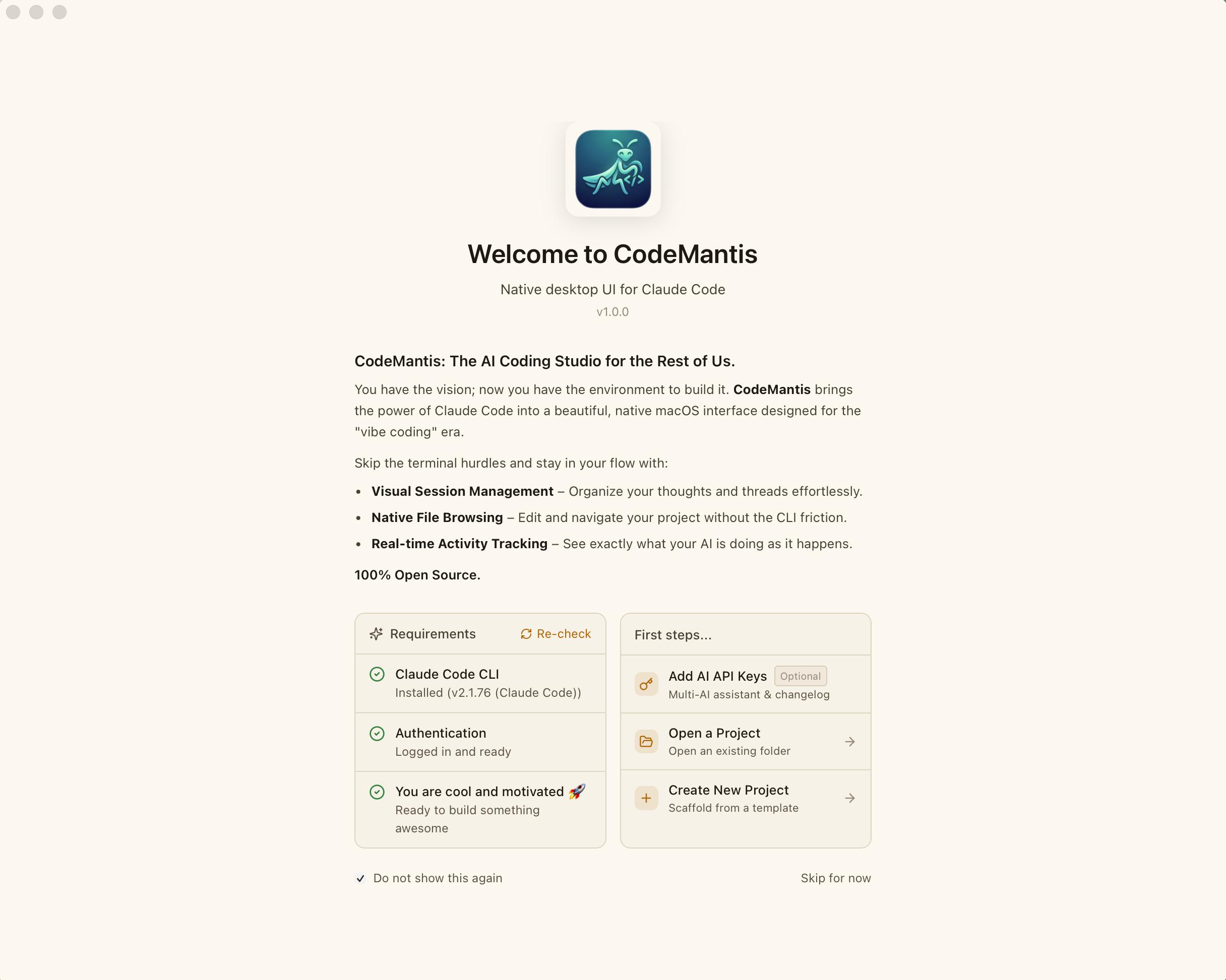
The Welcome Screen checks two prerequisites automatically:
- Claude Code CLI — shows "Installed" with the version number, or "Not installed" with a link to get it
- Authentication — shows "Logged in" or "Not authenticated"
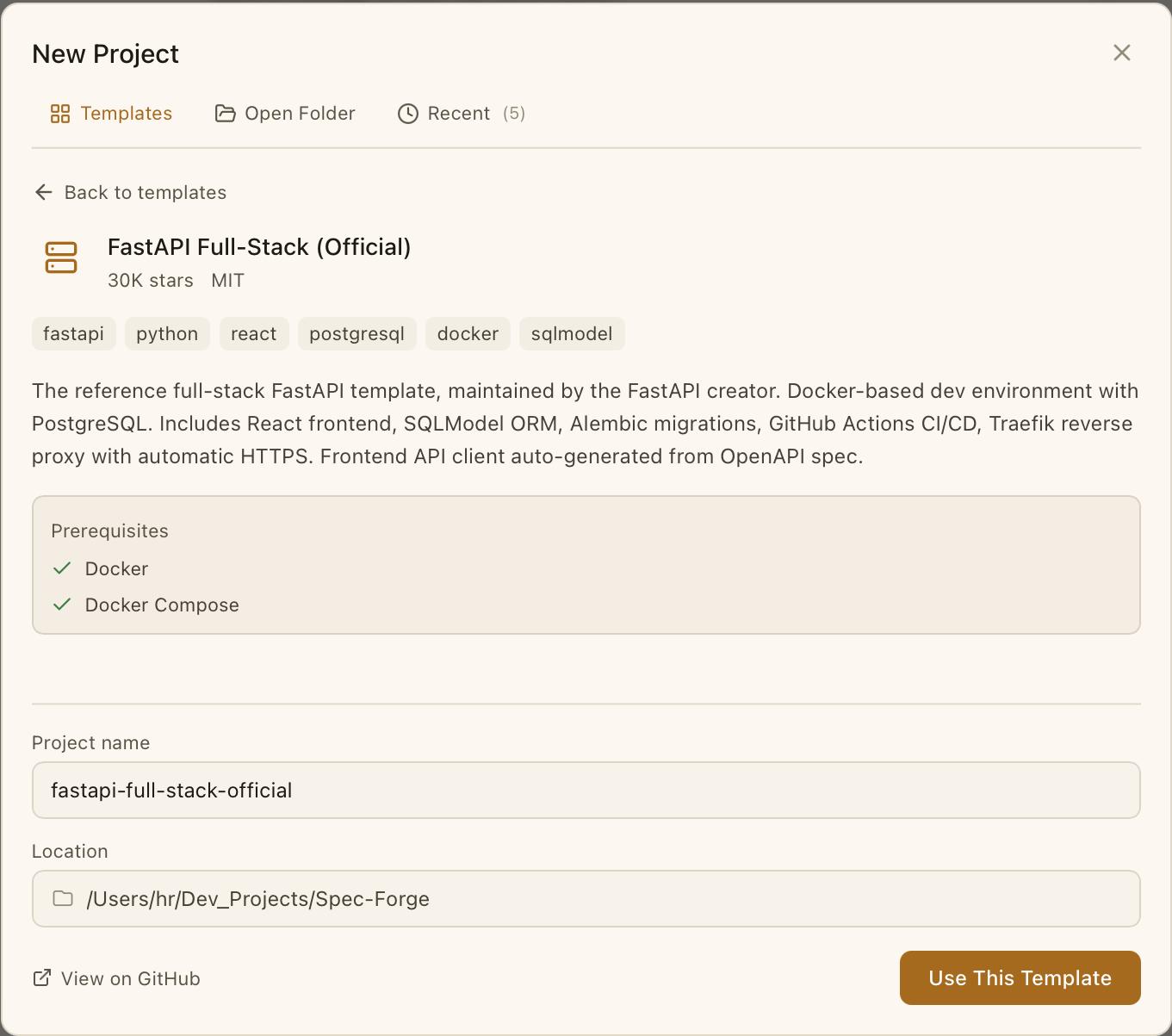
If both checks pass, you're ready to go. If not, follow the on-screen instructions or see Installing Claude Code.
Step 2: Open or Create a Project
You have two options:
- Open Project — Click this button and select any folder on your Mac. CodeMantis detects its structure and starts a Claude Code session.
- Create New Project — Choose from 10+ built-in project templates (Next.js, Vite, FastAPI, Astro, and more). CodeMantis scaffolds the project and opens it automatically.
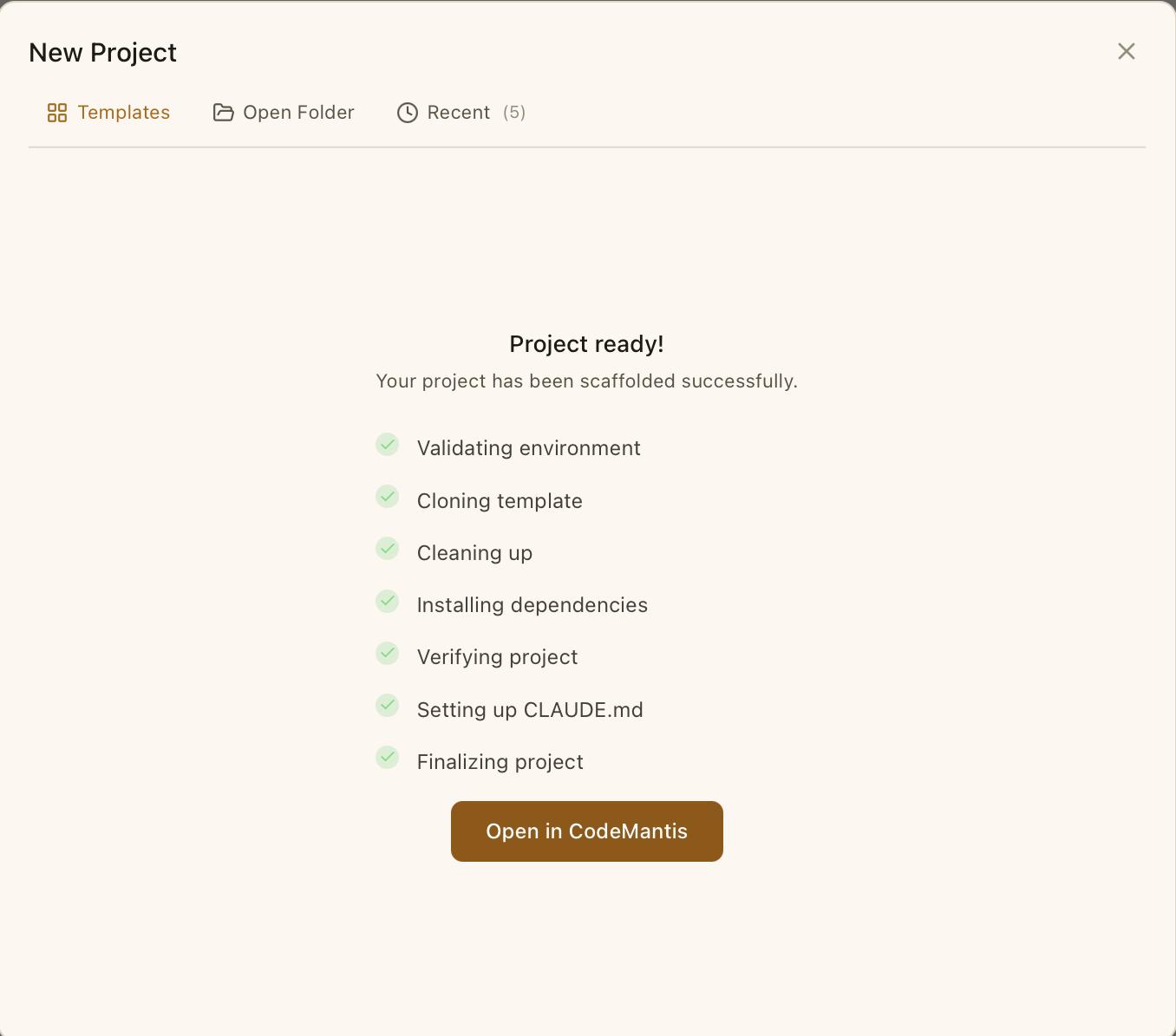
You can also optionally click Add AI API Keys to configure keys for the Changelog, Assistants, and SpecWriter. This step is optional — you can always do it later in Settings.
Step 3: Understand the Layout
Once a project is open, you'll see the three-panel layout:
- Left panel — File tree sidebar, git status, and context meter
- Center panel — Chat with Claude Code (this is where you type messages)
- Right panel — Tabs for Activity Feed, Files, Terminal, Changelog, and Assistants
The center panel is where the conversation happens. The right panel shows what Claude is doing (files read, edits made, commands run).
Step 4: Send Your First Message
Type a message in the chat input at the bottom. For example:
Explain the project structure and what each file doesPress Cmd + Enter to send. Claude Code reads your project files and responds with an explanation. You'll see activity entries appearing in the right panel as Claude reads files.
Try something more ambitious
Once you're comfortable, try asking Claude to make a change:
Add a dark mode toggle to the headerClaude will analyze your codebase, plan the changes, and start executing them.
Step 5: Understand Tool Approvals
By default, CodeMantis starts in Normal mode. This means Claude pauses before every action and asks for your approval.
When Claude wants to read a file, edit code, or run a command, the Tool Approval modal appears. You can:
- Approve — let Claude proceed
- Deny — reject the action (Claude adjusts its approach)
- Always allow — auto-approve this tool type for the rest of the session
A good early move: click "Always allow Read in this session" so Claude can freely explore your codebase while you keep approval gates on writes and commands.
Step 6: Explore Session Modes
CodeMantis offers three session modes that control Claude's autonomy:
| Mode | Behavior | Best For |
|---|---|---|
| Normal (default) | Pauses for approval on every action | Learning, sensitive code |
| Auto-Accept | Executes without pausing | Fast iteration, low-risk tasks |
| Plan | Reasons about your request but makes no changes | Architecture discussions, exploring approaches |
Switch modes by pressing Cmd + . or clicking the mode indicator in the input area.
Try Plan mode now: Switch to Plan mode and ask "How would you implement user authentication in this project?" Claude will outline an approach without touching any files. When you're satisfied with the plan, switch back to Normal or Auto-Accept to execute it.
What to Try Next
You've completed your first session. Here are natural next steps:
- Write a spec with SpecWriter — Define your next feature before building it
- Set up AI API keys — Enable changelog, assistants, and SpecWriter AI
- Build a feature end-to-end — Full workflow from spec to commit
- Learn keyboard shortcuts — Speed up your workflow
Super-Bro: Proactive AI Guidance
An intelligent assistant within CodeMantis that offers context-aware suggestions, keyboard shortcut help, and proactive guidance as you work.
Building a Feature from Scratch
End-to-end guide: write a spec, plan the approach, implement, review changes, and generate a changelog entry.