
Tool Approvals
Review and approve a coding agent's actions before they happen — with queue management, batch approval, and per-tool auto-allow. Applies to Claude Code; Codex uses a different policy model.
Overview
When Claude Code wants to edit a file, run a command, or perform any tool operation in Normal mode, it pauses and asks for your permission through the Tool Approval modal. This is your checkpoint to review exactly what Claude intends to do before it happens.
Tool approvals only appear in Normal mode. In Auto-Accept mode, all operations are approved automatically. In Plan mode, Claude cannot perform write operations at all.
Codex sessions don't use this modal. Codex's autonomy is governed by the Codex Policy Pill — a sandbox dial and an approval-policy dial set per session in the input toolbar. The semantics are different by design.
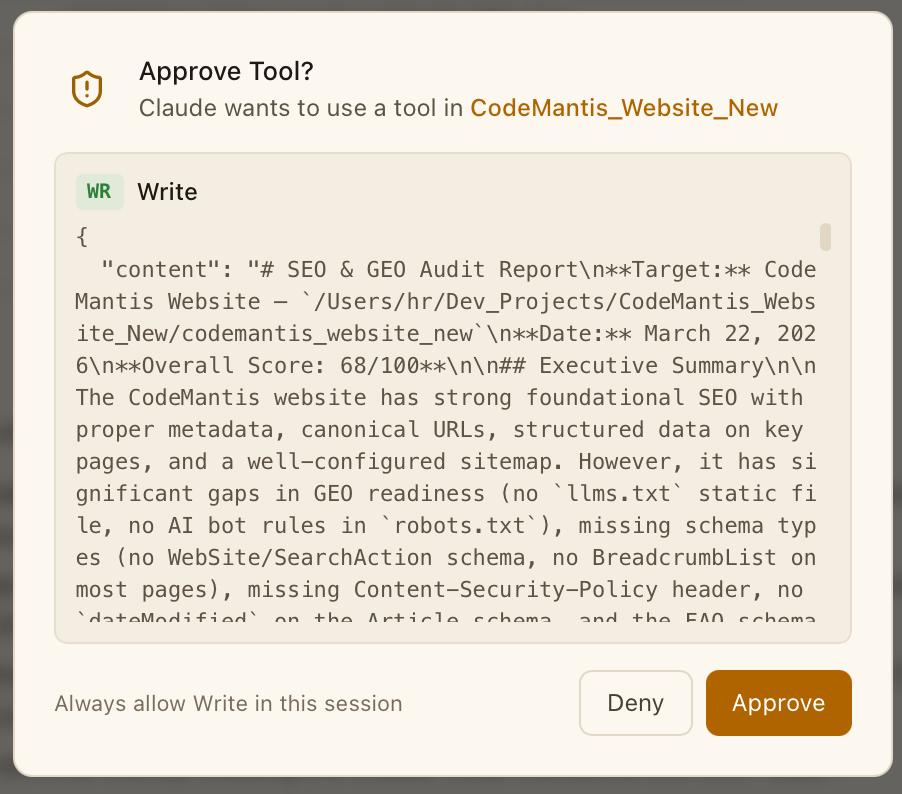
The Approval Modal
The modal appears as a centered dialog showing:
- A shield-alert icon with the title "Approve Tool?"
- The subtitle "Claude wants to use a tool in your project"
- A tool badge identifying the operation type (Edit, Write, Bash, Read, etc.)
- A content preview showing the tool input as formatted JSON — the file path, content to write, command to run, or other operation details. This scrolls if the content is long.
Action Buttons
At the bottom of the modal:
- Approve — allows Claude to proceed with the operation
- Deny — rejects the tool call; Claude receives a "Denied by user" message and adjusts its approach
- "Always allow tool name in this session" — approves now and auto-approves all future uses of this specific tool for the rest of the session
Handling Multiple Approvals
When Claude queues several operations at once, the modal shows a queue counter (e.g. "2/5") with navigation arrows. This lets you review each pending approval individually.
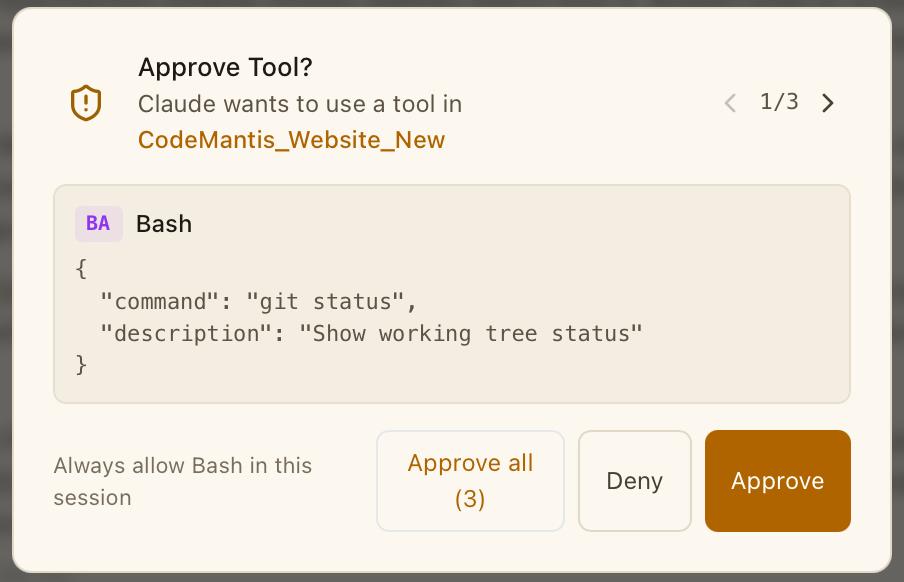
- Click the left/right arrows (or press the Arrow keys) to browse between queued approvals
- Click Approve all (count) to approve every pending operation at once
- Each approval can still be individually approved or denied
Keyboard Shortcuts
Fast keyboard control makes the approval flow feel lightweight:
| Shortcut | Action |
|---|---|
| Enter | Approve the current tool call |
| Escape | Deny the current tool call |
| Left / Right Arrow | Navigate between queued approvals |
| Cmd + A | Approve all queued tool calls |
"Always Allow" Per-Tool
When you click "Always allow tool name in this session", that specific tool type is permanently approved for the current session. For example, clicking "Always allow Read in this session" means Claude can read any file without asking — but will still pause for Edit, Write, and Bash operations.
This setting is:
- Per-session — resets when the session ends
- Per-tool — only affects the specific tool type you allowed
- Not persisted — does not carry over to new sessions
A common workflow: click "Always allow Read in this session" early on so Claude can freely explore your codebase, while keeping approval gates on write operations where you want to review changes.
What to Look For
The JSON content preview shows exactly what Claude plans to do. Pay attention to:
| Tool | What to Check |
|---|---|
| Edit | The file_path, old_string (what's being replaced), and new_string (the replacement) |
| Write | The file_path and the content being written — especially for new files |
| Bash | The command being executed — watch for destructive commands like rm, git reset, etc. |
| Read | The file_path — usually safe, but review if reading sensitive files |
Tips
- Use Enter/Escape for speed. You don't need the mouse — Enter approves, Escape denies. This keeps the flow fast during interactive sessions.
- "Always allow Read" is almost always safe. Let Claude explore freely while keeping control over writes and commands.
- Review Bash commands carefully. File reads and edits are usually safe to approve, but bash commands can have side effects (installing packages, modifying git history, running scripts).
- When in doubt, deny. Claude will adjust its approach and try something different. Denying is never destructive.