
File Viewer & Editor
Browse, edit, and diff files with the built-in Monaco editor — complete with syntax highlighting and side-by-side comparisons.
Overview
The File Viewer is a tabbed code editor built on Monaco Editor (the same engine behind VS Code). You can browse files in the sidebar, view and edit them, see diffs of Claude's changes, and save modifications — all without leaving CodeMantis.
The File Viewer occupies the Files tab in the right panel. Press Cmd + Shift + F to focus it.
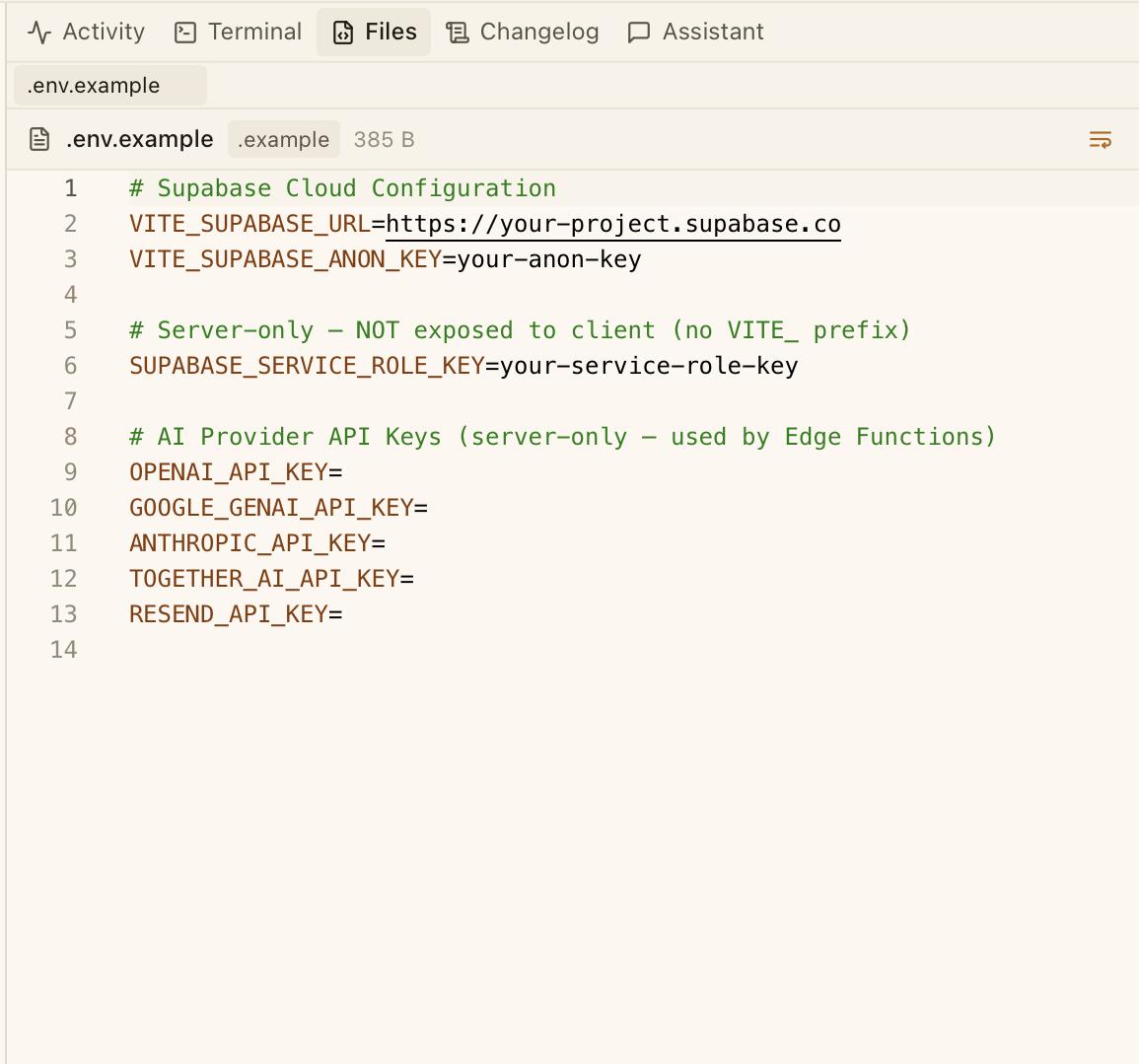
Opening Files
There are three ways to open a file in the viewer:
- Click a file in the sidebar file tree
- Click "Open in File Viewer" in the Activity Detail Panel (after clicking an activity entry)
- Auto-open — when enabled in Settings, files open automatically whenever Claude reads or writes them
Each file opens as a tab. Switch between open files by clicking tabs. Close a tab by hovering and clicking the x button.
Editing Files
Click in the editor and start typing. Changes are tracked immediately:
- The tab name shows a bullet character to indicate unsaved changes
- A Save button (disk icon) appears in the toolbar
- Press Cmd + S to save, or click the Save button
The editor provides full Monaco features: syntax highlighting (auto-detected from the file extension), line numbers, code folding, and a 6px scrollbar.
Semantic Language Intelligence (LSP)
Beyond syntax highlighting, the editor upgrades to full semantic language intelligence whenever a matching language server is installed on your machine. CodeMantis bundles and installs nothing — it detects and launches servers you already have, spanning 22 language families including TypeScript (typescript-language-server), Rust (rust-analyzer), Python (pyright/basedpyright), Go (gopls), C/C++ (clangd), Java (jdtls), Ruby (solargraph), PHP (intelephense), Swift (sourcekit-lsp), and Bash (bash-language-server) — plus YAML, JSON, HTML, CSS, Terraform, and Docker.
With a server running, the editor gains these capabilities:
| Capability | What it does |
|---|---|
| Completions | Context-aware autocomplete suggestions |
| Hover info | Type and documentation details on hover |
| Go-to-definition | Jump to where a symbol is defined |
| Find references | Locate every use of a symbol |
| Document symbols | Navigate the file's structure |
| Rename | Rename a symbol, with a safety preflight — a failed preflight changes nothing |
| Live diagnostics | Errors and warnings surfaced as you type |
Diagnostics appear both as Monaco markers in the editor and as per-file badges in the file tree, so you can spot problems without opening each file: E{n} for errors (red), W{n} for warnings (yellow), and I{n} for informational notices (gray). The file icon and name are recolored to the highest severity present.
Status Badge
A status badge in the editor header shows the current level of language intelligence:
| Badge | Meaning |
|---|---|
| Semantic starting (yellow) | A server is booting |
| Server name / Semantic ready (green) | A server is active |
| Syntax only (gray/red) | A server is unavailable or failed |
| Syntax | No server applies to this file type |
Servers start only when you actually open an editable file — browsing the file tree or Project view never launches one — and stop when the last document closes. Isolated worktrees get their own isolated server processes.
There are no settings to configure: install a language server on your machine and CodeMantis picks it up automatically. Everything degrades gracefully — syntax highlighting is always the baseline, so a missing, crashed, or misbehaving server simply falls back to tokenizer-only editing. A file is never blocked.
Diff View
When Claude edits a file, you can see exactly what changed using the diff view.
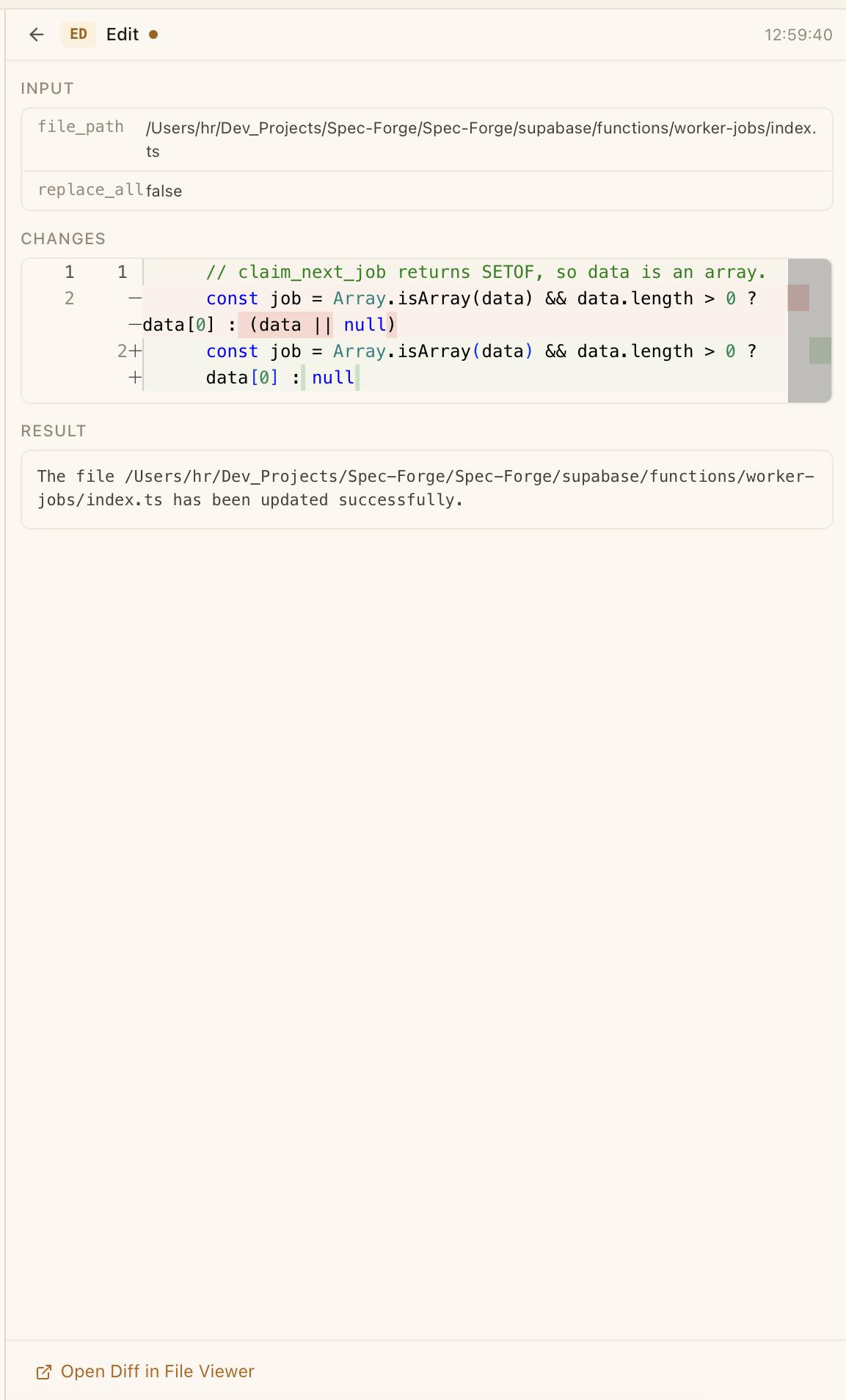
Click the diff toggle button (arrows icon) in the file header to switch between normal view and diff view. In diff mode:
- Removed lines have a red background
- Added lines have a green background
- A summary in the header shows the count: e.g. "+12 -3"
Click the columns icon to switch between unified diff (inline) and side-by-side comparison.
File Header Toolbar
The toolbar above the editor shows:
- File icon + name — with a bullet if unsaved
- Extension badge — e.g.
.tsx,.rs - Diff summary — green "+N" and red "-N" (in diff mode)
- File size — e.g. "12.3 KB" (in normal mode)
Toolbar buttons (right side):
- Save (disk icon) — only visible when unsaved changes exist
- Diff toggle (arrows icon) — switch between normal and diff view
- Word wrap (wrap icon) — toggle word wrapping on/off
- Side-by-side (columns icon) — only in diff mode, toggle between unified and side-by-side
The File Tree Sidebar
The sidebar file tree shows your project's directory structure with color-coded icons:
| Extension | Icon Color |
|---|---|
| .ts, .tsx | Blue |
| .js, .jsx | Yellow |
| .json | Gray |
| .md | Amber |
| .rs | Orange |
| .css | Blue |
| .html | Red |
| .py | Blue |
Special files — CLAUDE.md and the .claude folder — are highlighted in yellow with bold text so you can always spot your AI configuration files.
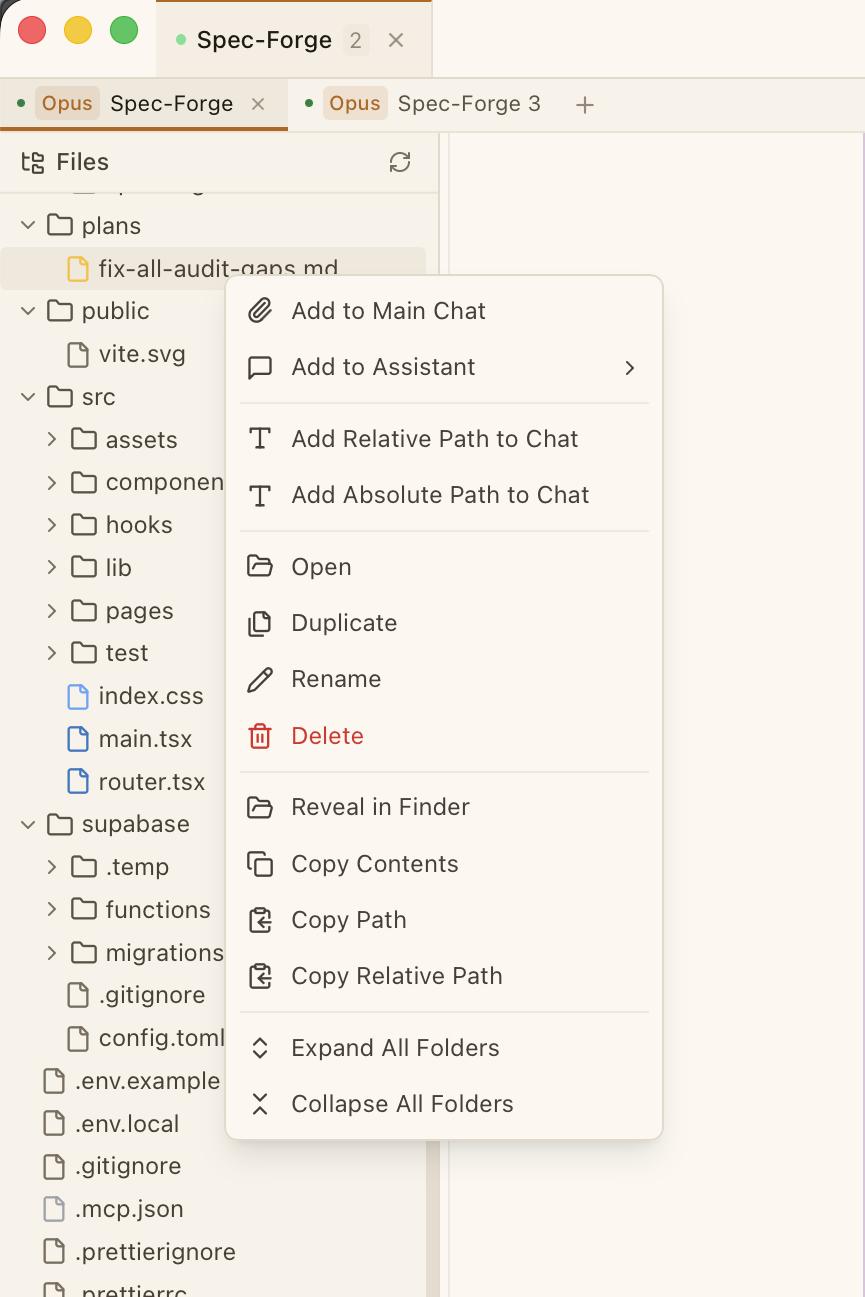
Context Menu (Right-Click)
Right-clicking a file in the sidebar opens a rich context menu:
| Action | Description |
|---|---|
| New File / New Folder | Create in the same directory |
| Add to Main Chat | Attach the file to the chat input |
| Add to Assistant | Attach to a specific assistant tab |
| Add Relative / Absolute Path to Chat | Insert the file path into the chat input |
| Open | Open in the File Viewer |
| Duplicate | Create a copy in the same directory |
| Rename | Inline rename with extension preserved |
| Delete | Delete with confirmation dialog |
| Reveal in Finder | Show in macOS Finder |
| Copy Contents | Copy full file text to clipboard |
| Copy Path / Copy Relative Path | Copy the path to clipboard |
| Expand All / Collapse All | Expand or collapse all folders |
Right-clicking a folder shows the same menu minus file-specific options (Open, Duplicate, Copy Contents, Add to Chat). New File and New Folder create items inside that folder.
Right-clicking empty space shows New File, New Folder (at project root), and Expand/Collapse All.
Creating Files and Folders
- Click the file+ or folder+ icons in the sidebar header
- Or right-click and choose New File / New Folder
- An inline input appears — type the name and press Enter. Press Escape to cancel.
Renaming and Deleting
- Rename: Right-click then Rename. The filename (without extension) is pre-selected for easy editing.
- Delete: Right-click then Delete. A confirmation dialog appears. For folders: "Delete folder and all its contents? This cannot be undone."
The file tree auto-refreshes when Claude modifies files or when you run commands in the terminal. You can also manually refresh by clicking the refresh icon in the "Files" header.
Image Preview
The File Viewer can display image files directly. When you open a PNG, JPG, GIF, WebP, or SVG file from the sidebar or activity feed, a preview modal shows the image at full resolution instead of raw binary content. This is useful for reviewing screenshots, icons, or design assets that Claude has generated or modified.
Inline Rename and File Creation
Beyond the context menu, the file tree supports inline operations:
- Inline rename — Right-click a file and choose Rename. The filename appears in an editable input field with the extension preserved (only the name portion is selected). Press Enter to confirm or Escape to cancel.
- Inline file creation — Click the file+ or folder+ icons in the sidebar header, or right-click and choose New File / New Folder. An inline input appears at the correct location in the tree — type the name and press Enter.
These inline operations keep you in the file tree without opening dialogs or modals.
Keyboard Shortcuts
| Shortcut | Action |
|---|---|
| Cmd + Shift + F | Focus File Viewer |
| Cmd + S | Save the active file |
| Cmd + B | Toggle sidebar visibility |
Tips
- Right-click is your power tool. The context menu gives you 15+ actions — from attaching files to chat, to copying paths, to revealing in Finder.
- Use the diff toggle after Claude edits a file to see exactly what changed, with the same green/red highlighting as a Git diff.
- "Add to Main Chat" is a quick way to give Claude context about a specific file without having to type the path manually.
- Open images directly — click any image file in the sidebar to preview it without leaving CodeMantis.