
Integrated Terminals
Run commands, start dev servers, and use quick command presets — all from built-in terminal emulators.
Overview
CodeMantis includes fully integrated terminal emulators powered by xterm.js. You can run commands, start dev servers, and execute quick command presets without leaving the app. The Terminal tab supports multiple simultaneous terminals, each with its own process.
Press Cmd + Shift + T to focus the Terminal tab in the right panel.
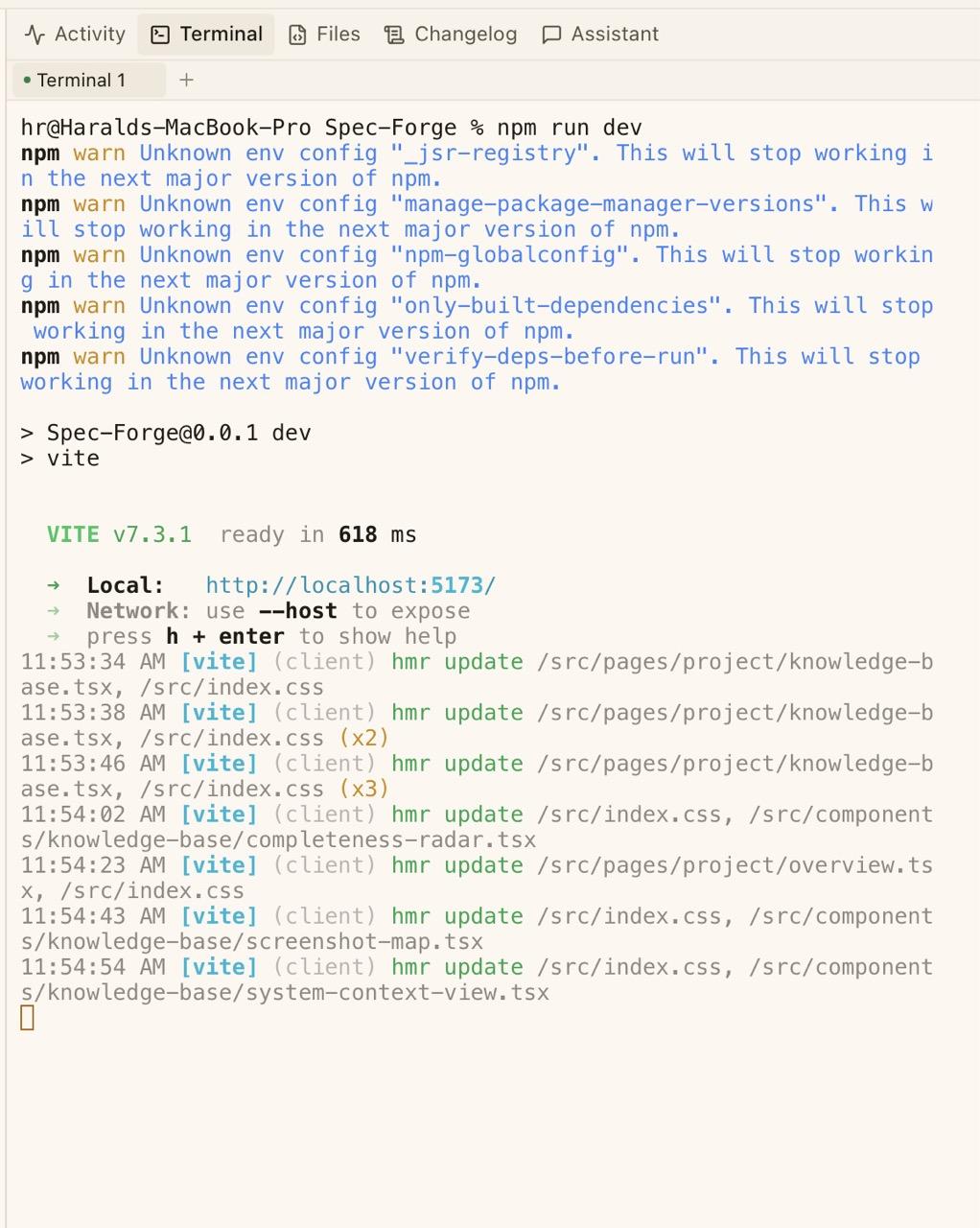
Terminal Tabs
The Terminal tab has its own tab bar at the top. You can have up to 6 terminals open simultaneously per session. Each terminal tab shows:
- A status dot — green if the process is running, red if it has exited
- The terminal name (e.g. "Terminal 1", "Dev Server")
- A close button (x) on hover
Click the + button to create a new terminal. Click a tab to switch between terminals. Terminal state is preserved when you switch between tabs — output, scroll position, and running processes are maintained.
Terminal Features
Each terminal provides:
- Full color support — ANSI 256 colors for tools like git diff, test runners, and log output
- 5,000 lines of scrollback — scroll up to review previous output
- Clickable URLs — links in terminal output open in your default browser
- Monospace font — SF Mono, Fira Code, or Cascadia Code
- Auto-resize — the terminal resizes when you adjust the panel width
- Theme matching — terminal colors follow your current CodeMantis theme
Quick Commands
A row of configurable command buttons sits at the bottom of the Terminal tab. Click any button to instantly execute that command in the active terminal.
Default quick commands:
| Button | Command |
|---|---|
| Build | pnpm build |
| Test | pnpm test |
| Lint | pnpm lint |
| Dev | pnpm dev |
Hover over a button to see the full command as a tooltip.
Customizing Quick Commands
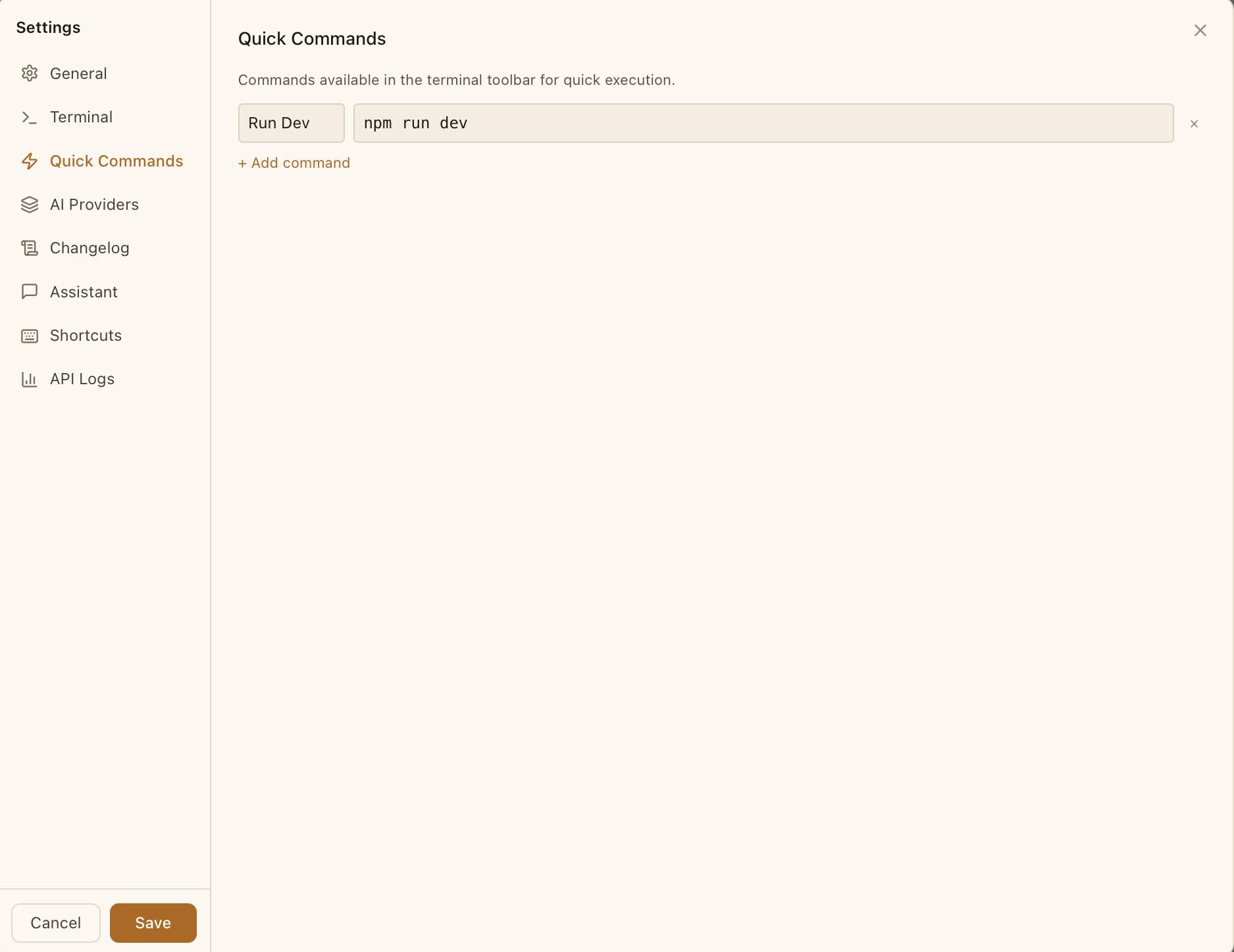
Open Settings > Quick Commands to add, edit, or remove preset commands. Each command has a label (shown on the button) and a command string (what gets executed). Set these to match your project: cargo test, python manage.py runserver, npm run dev, or whatever you use most.
Dev Server Detection
When a dev server is running in a terminal (in any session), CodeMantis detects it automatically. A Dev Server Banner appears at the top of the Terminal tab showing:
- A radio icon in accent color
- The session name running the server
- Detected port numbers as clickable links (e.g.
:3000,:5173)
Click a port number to open the URL in your default browser.
The file tree auto-refreshes about 2 seconds after you press Enter in the terminal, so file changes from terminal commands are reflected in the sidebar automatically.
Configuration
| Setting | Location | Description |
|---|---|---|
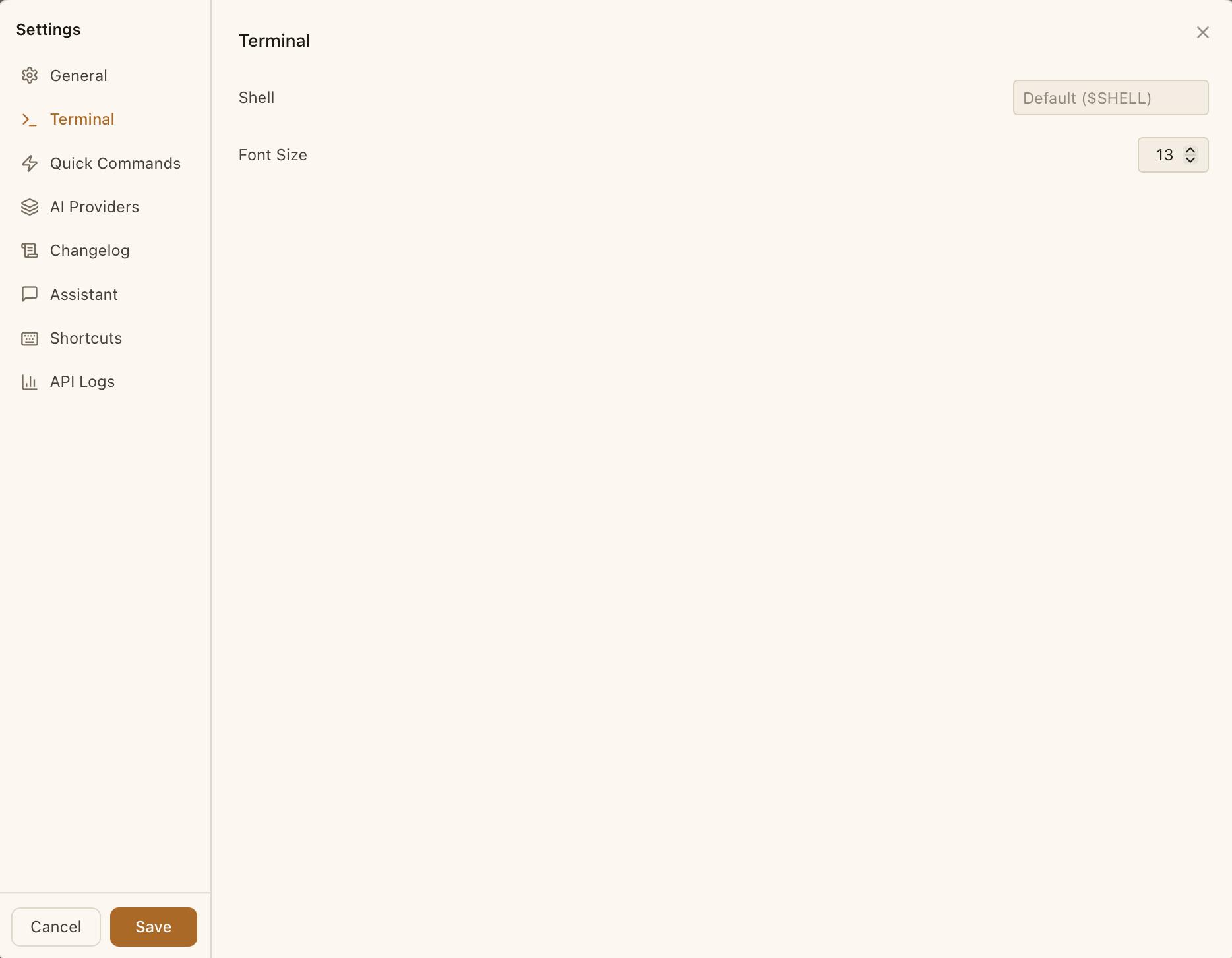
| Shell | Settings > Terminal | Custom shell path (defaults to your system $SHELL) |
| Font Size | Settings > Terminal | Terminal font size, independent from the app font size |
| Quick Commands | Settings > Quick Commands | Add, edit, or remove preset terminal commands |
Keyboard Shortcuts
| Shortcut | Action |
|---|---|
| Cmd + Shift + T | Focus Terminal tab |
Tips
- Use multiple terminals for different tasks — one for the dev server, one for tests, one for git operations. Up to 6 per session.
- Customize Quick Commands to match your stack. The default
pnpmcommands work for many JavaScript projects, but you can set anything. - Watch the status dot — a red dot means the terminal process has exited. The output is preserved so you can review what happened.
- Click port numbers in the Dev Server Banner to quickly open your running app in the browser.